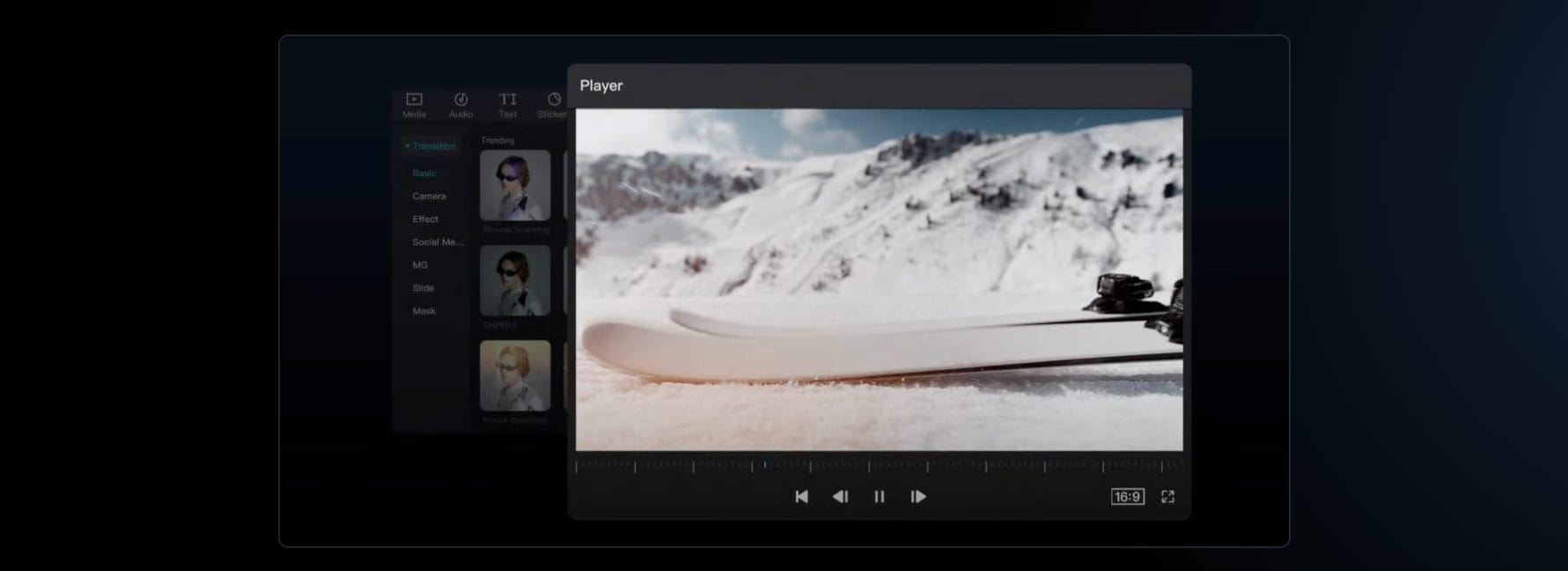
The good news is that most of these mistakes are avoidable with little awareness and practice. By understanding the common pitfalls and using the best free video editing software, like CapCut, you can refine your skills, streamline your workflow, and produce high-quality videos that engage and inspire your audience. In this article, we’ll explore the top mistakes to watch out for in video editing, along with practical tips and strategies to help you overcome them. Whether you’re editing for personal projects or professional endeavors, these insights will guide you toward creating polished, captivating videos that resonate with viewers worldwide.

What Video Editing Mistakes Are Holding You Back
Here are some of the most common mistakes to watch out for in video editing:
Poor Video and Audio Quality
Poor video and audio quality can make your content look unprofessional and may deter viewers from engaging with it. This often occurs when videos are shot in low resolutions or when there is significant background noise in the audio. For instance, videos captured in resolutions lower than 1080p can appear grainy or pixelated, especially on larger screens. Similarly, audio with background noise, inconsistent volume levels, or low-quality sound can ruin an otherwise well-edited video.
1. Overusing Transitions and Effects
Transitions and effects can add flair to your video, but overusing them can be distracting and make your content look amateurish. Beginners often get excited about experimenting with various effects, leading to excessive use. This can detract from the narrative flow and make the video feel cluttered or chaotic. Overreliance on transitions can also disrupt the pacing of your video, making it feel disjointed.
2. Ignoring Color Correction and Grading
Inconsistent color tones can disrupt the visual harmony of your video, making it look disjointed. This often happens when footage is shot in varying lighting conditions or when multiple cameras are used. Different lighting conditions can result in inconsistent colors, while using different cameras can also lead to color discrepancies. These inconsistencies can make your video appear unpolished and detract from the overall viewing experience. Whether you are using a free AI video generator or a paid one, consider using a color palette that suits your video theme.
3. Failing to Cut Out Unnecessary Parts
Leaving unnecessary pauses or irrelevant content can make your video drag, losing viewer interest. Editors might be emotionally attached to certain scenes or shots, making it difficult to decide what to cut. This can lead to a video that feels long-winded or meandering, failing to maintain a consistent pace or narrative flow.
4. Overlooking Aspect Ratio, Resolution, and Cropping
Uploading a video with the wrong aspect ratio or resolution can ruin its appearance on different platforms. This often happens due to a lack of awareness about where the video will be viewed or technical oversight during export. For instance, a video optimized for a widescreen TV might appear distorted on a smartphone screen if not properly formatted.
5. Cluttering the Timeline
A disorganized timeline can lead to errors and confusion during editing. This can happen when editors lack experience or when working on complex projects. A cluttered timeline makes it difficult to navigate and manage clips, potentially leading to misplaced or deleted files.
6. Leaving a Watermark
Using free video editing software that adds a watermark can make your project look unprofessional. This often occurs due to budget constraints or a lack of awareness about watermark-free alternatives. A watermark can distract you from the content and undermine the credibility of your video.
7. Poor Audio Synchronization
Misaligned audio and video can confuse viewers and detract from the overall experience. This can happen due to technical issues during recording or editing, such as audio and video tracks not being properly synced. Poor audio synchronization can make your video feel disjointed or amateurish.
8. Not Adding Captions
Failing to add captions can significantly limit the accessibility and engagement of your video. Captions are essential for viewers who prefer watching videos with sound off or for those with hearing impairments. Without captions, your content may not reach its full potential audience, and viewers may struggle to understand the narrative or dialogue. Use the AI caption generator, like CapCut, and increase your video’s visibility online.
How to Edit Your Videos with CapCut Desktop Video Editor
CapCut Desktop Video Editor is a powerful tool for creating stunning videos, offering a range of features that make editing easy and fun. Here’s a step-by-step guide to help you get started.
Step 1: Open CapCut & Upload a Video
Begin by launching the CapCut Desktop Video Editor on your computer. Once the application is open, create a new project by clicking on “Create project.” To upload your video, click on the “Import” button or drag and drop your video file directly into the media library.

Step 2: Customize Video Elements
With your video on the timeline, you can now customize various elements to enhance your content. You can adjust the video speed, add text and animations, and scale the video. Use the Text feature to include stylish captions or text overlays to provide context and make your video more engaging. Navigate to Transitions to connect clips seamlessly and add effects to create a dynamic visual experience. Use the Audio option to enhance your video’s sound by adding music, adjusting volume levels, or using sound effects to create a more immersive experience.

Step 3: Export the Video
Once you are satisfied with your edits, it’s time to export your video. Click on the “Export” button, usually located in the top right corner of the interface. Here, you can customize export settings such as resolution, frame rate, and format to ensure your video is optimized for its intended platform.

Conclusion: Mastering Video Editing
Avoiding common mistakes in video editing is crucial for producing high-quality content that engages audiences and tells compelling stories. By being mindful of these pitfalls, you can refine your editing skills and create professional-looking videos that resonate with viewers. Whether you’re a beginner or an experienced editor, continuous learning and practice are key to mastering the art of video editing.

Magnetic byline note: This byline is used for staff produced updates and short announcements, often based on press materials and official release information. Editorial responsibility: David Ireland (Editor in Chief) and Will Vance (Managing Editor). About: https://magneticmag.com/about/ Masthead: https://magneticmag.com/masthead/ Contact: https://magneticmag.com/contact/