Release day is locked in. The master is approved, the single sits in Spotify for Artists, and the Canvas slot is still blank.
You have one finished visual: a square cover that shines in a feed but leaves black bars on a vertical phone screen.
Hiring a motion designer for an eight-second loop each time you drop a track is neither cheap nor practical, especially if you run a steady stream of singles.
Most of us fall back on three quick moves instead: re-frame the existing artwork, trim a clip we already own, or build a fresh scene from stock or AI.
The six tools below handle those moves in different ways, so we ranked them by how fast they take you from finished art to a compliant Canvas without derailing release week.
What Spotify Asks For
Spotify treats Canvas as an eight-second mini-billboard that replaces your static cover in the Now Playing view. It plays silently, loops endlessly, and fills the entire phone screen.
If this is your first release, learn how to put your music on Spotify before you plan the visual. Canvas only appears on a track that your distributor has already delivered to Spotify.
To keep uploads smooth, Spotify publishes clear specs. Your file needs to run for three to eight seconds, sit in a vertical 9:16 frame, and measure somewhere between 720 and 1080 pixels tall. Accepted formats are MP4 and JPG.
The guidelines also push you toward abstract or atmospheric motion. Because the clip is so short, visible singing or rapping drifts out of sync and looks off-beat.
How We Chose These Tools
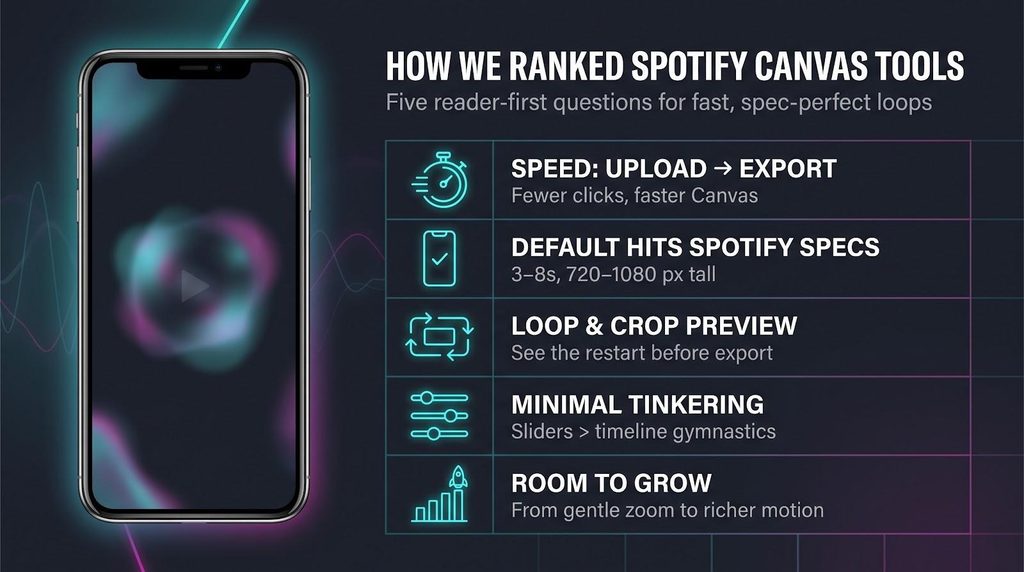
We focused on the finish line, not the feature list. Every pick had to turn a finished cover or clip into a compliant Canvas with minimal fuss.
Five factors steered the ranking:
- Distance from upload to export. Fewer clicks wins.
- Spec alignment. Defaults must land inside Spotify’s current 3-to-8-second, 720-to-1080-pixel window.
- Crop and loop previews. If you can’t see the trim and the restart, the tool drops down the order.
- Editing overhead. Quick tweaks beat timeline gymnastics.
- Headroom for growth. Bonus points for an optional path to richer motion when a slow zoom feels flat.
Neural Frames tops the list because it nails the essentials: drag in the art, preview the vertical crop, and download a ready-to-upload MP4. The other tools fill different niches—from stock-driven textures to full keyframe control—but they start a step or two farther from that urgent upload button.
1. Neural Frames
Neural Frames leads this list because its Spotify Canvas maker starts where most of us already are: with a finished square cover and a looming deadline. Drag the artwork—or any short clip—into the browser window and the tool instantly shows a live vertical crop. You can nudge the frame to keep logos or faces centered, then set the exact length between three and eight seconds. Editing and export run in the browser tab, and your media is not uploaded.
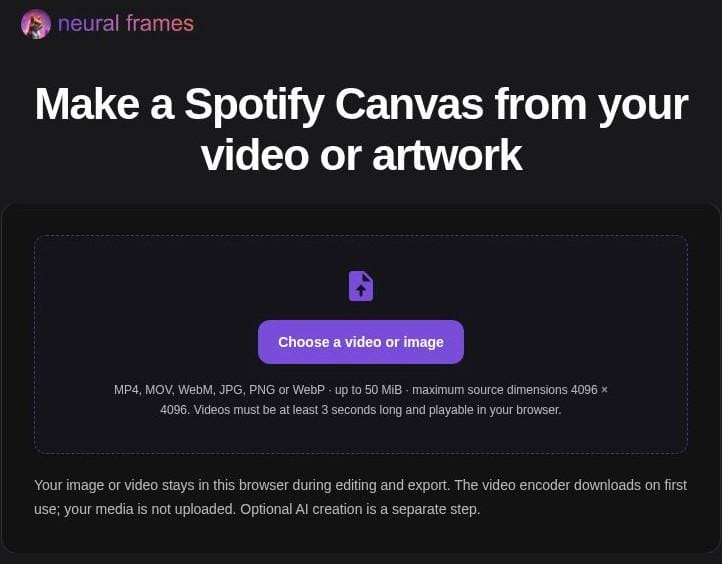
The Neural Frames Spotify Canvas maker takes MP4, MOV, WebM, JPG, PNG or WebP files.
The export is laser-focused on Spotify. You get a silent H.264 MP4 at 576 × 1024 pixels, locked at 30 fps and capped at eight seconds. Those numbers sit neatly inside Spotify’s spec window, so the file sails through the upload dialog without a second resize check.
Two source paths cover almost every release scenario. A still image receives a gentle zoom that adds life without distracting from the art, while a video can be trimmed and reframed in the same interface. Accepted inputs span MP4, MOV, WebM, JPG, PNG, and WebP up to 50 MiB, so you can reuse phone footage, stock loops, or the label’s promo clip without format gymnastics.
The real headline, though, is the crop preview. Square artwork often hides key detail near its edges—text, artist portraits, even a catalog number. Seeing the vertical frame before export stops that detail from vanishing on fans’ phones.
Neural Frames is honest about its scope. The Canvas maker reformats existing media; it does not invent brand-new motion. When you need a wilder look, the same platform houses a separate AI music-video generator that spins fresh scenes from your track, but that workflow lives outside the quick-turn Canvas tool.
Limitations are deliberate. The zoom animation is restrained, and the output resolution tops out at 576 × 1024. For most electronic releases, that restraint is a strength: the loop supports the song without hijacking attention.
If you want the shortest, safest route from cover art to compliant Canvas, Neural Frames is the button to press.
2. Rotor Videos
Rotor takes a different tack: instead of coaxing subtle motion from a still cover, it drops nine million video clips on your desk and says, “Pick a mood.” You start by choosing a style template—its site shows looks such as Cinematic, Hard Cut and VHS Vision—then audition footage that fits the palette.
The library is the draw. Landscapes, neon streets, particle flows, even visualizers; all pre-cleared and ready to loop. Select a clip, trim a seven-second slice, and Rotor snaps it into a vertical 9:16 frame. The editor previews the loop so you can catch a jarring cut before export.
Why rank it below Neural Frames? Because Rotor shines when the artwork itself is static or unsuited to motion. If you want the cover front and centre, you will need to layer it in post or choose another tool. Rotor’s strength is fresh texture that sits behind the music rather than the literal sleeve.
Use Rotor when you crave moving atmosphere—a stormy coast behind a trance lead, skyline b-roll for a melodic groove—without spending hours on a stock-site treasure hunt.
3. Adobe Express
Adobe Express slots neatly between heavy-duty editing suites and drag-and-drop design apps. Open a new project, switch the canvas to a vertical 9:16 frame, and drop your square cover into place. A single click applies a slow zoom, pan, or dissolve that turns static art into a living backdrop. You can fine-tune speed and direction, then set the clip length to anything between three and eight seconds.
If your label already works in Adobe’s tools, Express keeps the release artwork, type and colors in one familiar place. That continuity matters when you run a label catalog and need every single to share the same typographic DNA.
Export is straightforward. Toggle “mute,” choose MP4, and confirm the height lands at or below 1080 pixels.
What holds Express back from the top two slots is hands-on time. You make the decisions, not an AI template, so the workflow is a touch slower. Still, for artists already living inside Adobe’s ecosystem, that familiarity offsets the extra clicks and delivers a polished result that feels on-brand every time.
4. Canva
If you designed the sleeve in Canva, staying in the same workspace saves a ton of context-switching. Duplicate the artwork, switch to a vertical 9:16 size no taller than 1080 pixels, and you are already halfway to a Canvas.
Canva’s photo-animation panel gives you gentle moves like Pan, Tumble, or Zoom, while the “Create an Animation” tool lets you draw a custom path. Keep it subtle. A slow drift or a background texture pass works better than a rapid bounce that screams for attention.
The timeline along the bottom trims the clip to a six- or seven-second loop, and the MP4 export button lives one click away. Remember to mute audio and double-check that the height sits at 1080 pixels or below before downloading.
There is one caveat. Canva’s editor plays a straight preview, not a loop, so you need to scrub the playhead back to frame one and watch the cut yourself. Make sure the final frame and the first frame feel like a continuation, not a jump.
Overall, Canva is less prescriptive than Neural Frames and less adventurous than Rotor, but that middle ground is a sweet spot when you want the cover, type, and palette you already approved, only taller and gently breathing on a fan’s phone.
5. CapCut
CapCut is the tinkerer’s playground. Fire up a vertical 9:16 project, drop the cover in, and you are looking at a full timeline complete with keyframes for position, scale, rotation, opacity, and even color filters.
A slow push, a gentle tilt, or a soft opacity pulse is only two keyframes away. Because CapCut interpolates movement, the animation glides rather than stutters, which helps the loop feel seamless when it restarts.
A simple recipe:
- Duplicate the cover onto two layers.
- Blur and enlarge the bottom layer to fill the vertical frame.
- Add a three-keyframe zoom on the top layer—start at 100 %, creep to 105 %, then drift back to 100 %.
Trim everything to a six-second span, mute the audio track, and export an MP4. Double-check the settings panel: if the export height reads above 1080, drop it to 1080 or below before rendering.
The downside is temptation. Dozens of transitions, filters, and stickers sit a click away, and it is easy to over-edit a loop that is only going to play behind the Now Playing metadata. Discipline pays off. Keep moves slow and single-directional so the jump back to frame one stays invisible.
For producers who enjoy hands-on control, CapCut is a flexible workhorse that turns a plain cover into a finely tuned animation. Just budget an extra ten minutes for keyframe tweaks and a loop test on your phone before you call it done.
6. Kapwing
Kapwing markets a one-click “Spotify Canvas Maker,” and the template does feel welcoming: a seven-second timeline, vertical frame, and drag-and-drop media slot. Drop your cover art in, add a mild pan or zoom, and you are already looking at a preview that loops in the editor.
The browser timeline is the star here. You can add extra layers—lyrics, texture overlays, subtle flares—and nudge their in-points to line up with musical moments. Keyframes let you dial in precise motion rather than rely on broad presets.
Now for the important catch. The default Canvas template sits at 1080 × 1920 pixels, which exceeds Spotify’s current height ceiling of 1080. That one detail bumps Kapwing to sixth place. The fix is painless—open the “Canvas Size” panel and set the height to 1080 or 1024 before exporting—but forgetting that step can trigger an upload error on release day.
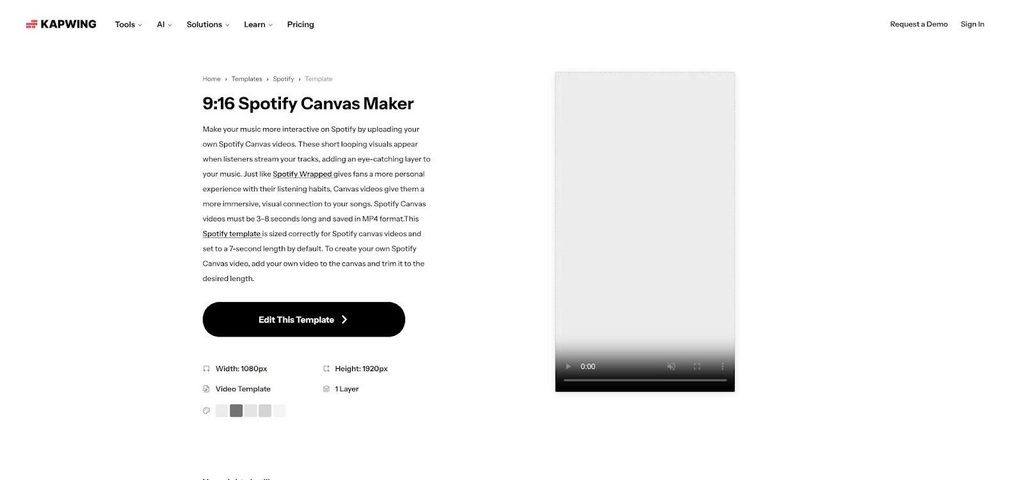
Kapwing’s Spotify Canvas template, shown on its own site at 1080 × 1920 pixels.
Once resized, the export options are solid: MP4, H.264, and a mute toggle to kill inherited audio.
Kapwing suits artists who want a layered, time-synced look yet still prefer a friendly browser UI over a full NLE. Just build “resize before render” into your routine and you will walk away with a polished loop that behaves on every phone.
Before You Upload
Play the loop back-to-back a few times and watch the reset point. The transition should feel like a single, endless move, not a jump cut.
Next, give the edges a once-over. Song titles, artist names, and faces love to wander toward the border during a zoom. Keep every critical detail inside a comfortable margin so different phone crops never nibble it away.
Glance at the inspector and confirm the ratio reads 9:16—not a square stretched tall. Then check the runtime. Anything shorter than three seconds or longer than eight fails the upload test.
Open the finished MP4 on your own phone. Rotate, pause, and scrub to spot any banding or artifacts that didn’t show up on your desktop display.
Finally, upload through Spotify for Artists, preview the crop one last time, and hit publish. Make these checks part of your regular release routine and you will never scramble for a placeholder visual again.

Magnetic byline note: This byline is used for staff produced updates and short announcements, often based on press materials and official release information. Editorial responsibility: David Ireland (Editor in Chief) and Will Vance (Managing Editor). About: https://magneticmag.com/about/ Masthead: https://magneticmag.com/masthead/ Contact: https://magneticmag.com/contact/