Table of Contents
I’m going to consider this a follow up to my Mixed In Key 11 Pro review, which I published a few weeks ago and spoke a bit about preparing for live sets.
That tool makes building the setlist super easy. But, actually playing that setlist live to a crowd? That’s an entirely different beast.
While, realistically, most everything you look at on a DJ controller is pretty simple in nature (buttons, knobs, sliders), there are a lot of intricacies within the hardware. That means if you do even the slightest thing wrong, you may have just ruined your mix. You could have the best setlist in the world, but if your live performance skills suck, then your set will suck.
This is why practice is necessary, especially if you’re a newcomer.
And, if you’re new to the world of live sets, you should probably get a deck to practice on at home. While many clubs and venues will have their own equipment, it’s best to get one of your own to prepare to the fullest extent, as most every DJ controller functions in the same way regardless of manufacturer.
The focus of today’s review is the AlphaTheta DDJ-FLX2, one of the newer and simpler offerings from the company that’s geared towards veterans and beginners alike. If you aren’t familiar with the name AlphaTheta, then you may be familiar with the name Pioneer DJ, which they used to release products under.
Their controllers (namely the CDJs and XDJs) are regarded as the gold standard across the industry, and they’re also the company behind Rekordbox, a free virtual DJ player that you can use in tandem with a DJ controller or to format your songs properly for USB players.
This is important to know because the controller I am reviewing does not have an internal music searching system like CDJ or XDJs. You will need to use a program alongside it on your laptop, tablet, or phone, and I personally recommend you use Rekordbox with it if you can, as both the program and controller are designed by the same people.
Let’s get into the review!
Unboxing and Setup
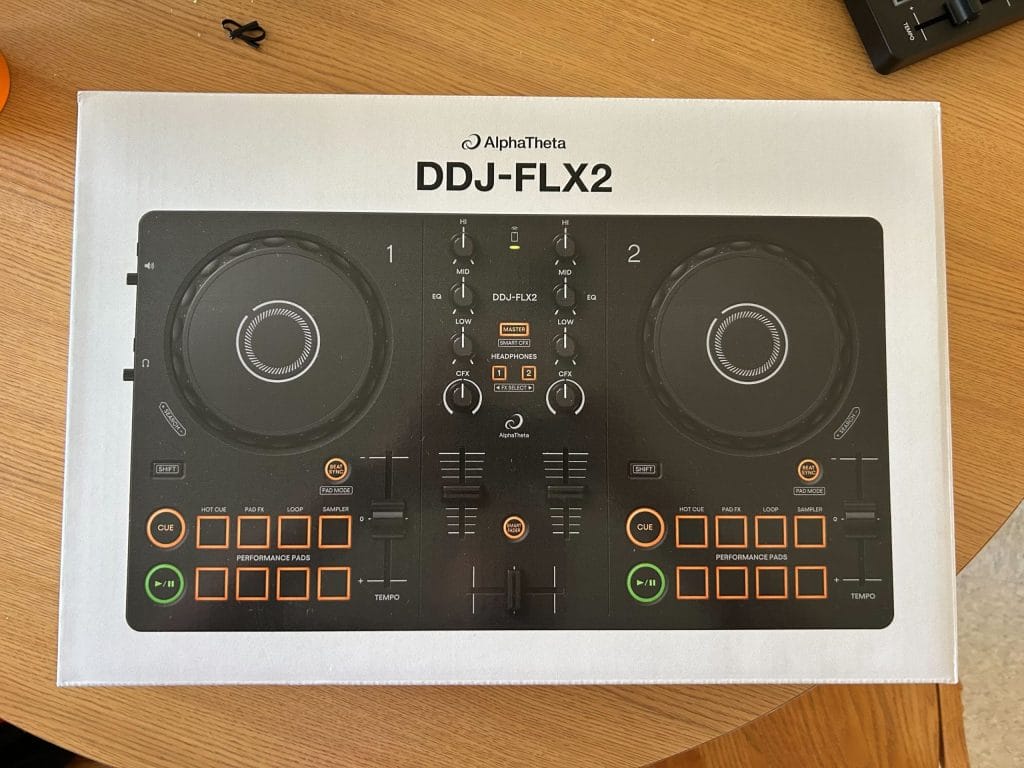
Whenever I buy a comparatively pricy piece of gear, my first litmus test is to see what kind of protection it’s sent along with. I’m happy to report that if they package every unit like they did mine (in an entirely different box with a good piece of plastic wrap), you won’t have to worry about it arriving in several pieces.
The unboxing process is simple. After you open up the first box, the second box contains everything you’re going to need.
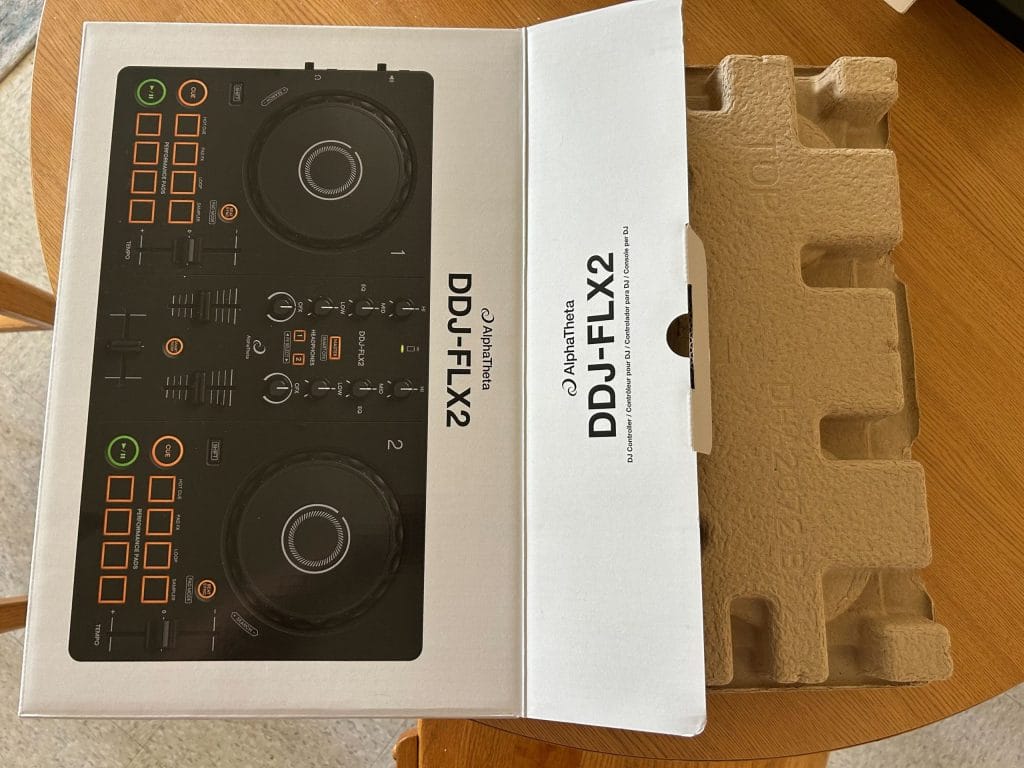
This is what’s found inside the second box, a very intricate holding device for the controller, as well as the power cable and a manual found in a separate folder. That’s all you get; any other headphones/aux cables/speakers you’ll have to source yourself, which is the norm.
You’ll be very quickly prompted to scan a QR code to register your board. I recommend you do this as quick as possible so you can get any major software updates you’d need, as well as user guides. You can do this if you have an account with any AlphaTheta property, including Rekordbox – just log in using that username and password and you’re good to go.
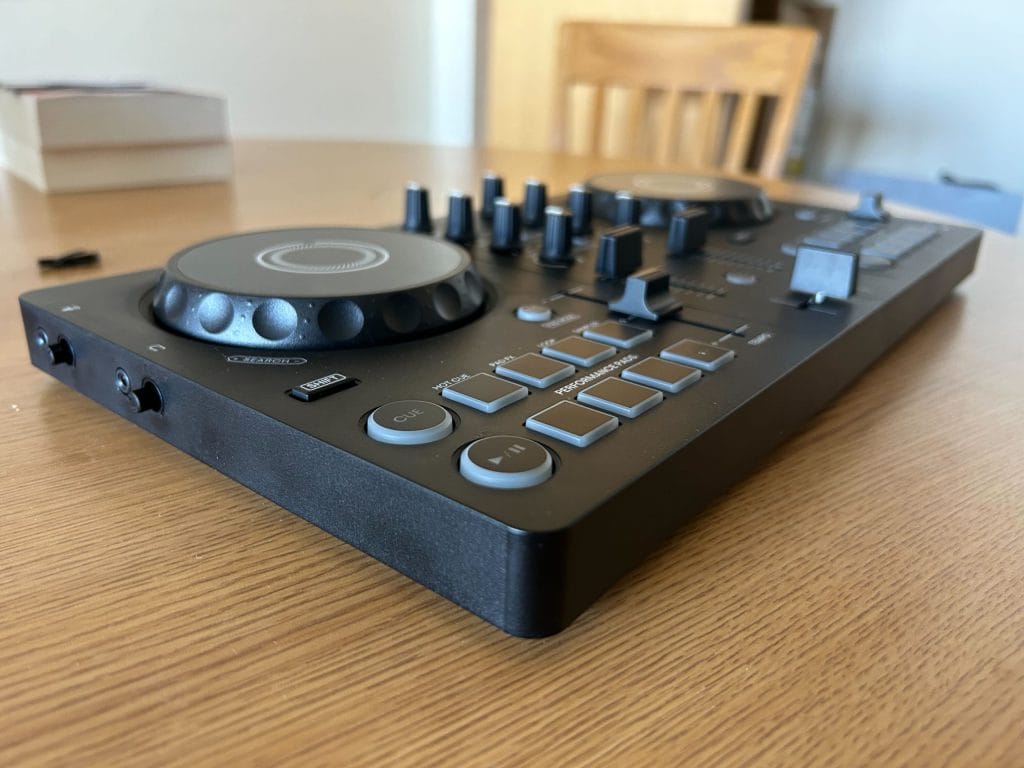
After you unbuckle the holding device (which you can repeatedly re-use if you’d like, I plan on doing so) this is all you have left: the speaker itself. It’s smaller than I expected, and very lightweight. But, as you can clearly see, they’ve included everything you’ll need for a mix on it despite its small size.
You’ve got the decks on the left and right, with turntables, performance pads that you can program inside Rekordbox (or your DJ app of choice) to play effects & samples or set hot cues & loops, and, of course, the play and cue buttons along with the tempo slider. All the buttons and sliders are responsive to the touch, but not too responsive; if you accidentally tap the cue button mid performance without much weight on your finger, it won’t go all the way back to the start.
The shift button allows you to select what you’d like the pads to do. Hit the shift button and then the sync button, and then click the corresponding pad to decide what mode you’d like it to be in. All the pads will then flash orange to show that it’s now in loop mode, or hut cue mode, or FX mode.
The console in the middle is simple enough. The EQ knobs on either side correspond to the song playing in that deck, and so does the CFX knob at the bottom. Hit shift and then the “master” button in the middle to bring up the Smart CFX menu in Rekordbox to help you select exactly what you want it to do. I don’t know if this feature works in other programs unfortunately, as I think Smart CFX is exclusively a Rekordbox thing. It’ll work as a simple filter if you don’t adjust it.

The master button and the “1” and “2” correspond to the headphones. If you’re using headphones and hit one of those buttons, you’ll be able to hear audio through your headphones: hit 1 and you’ll hear deck 1, hit 2 and you’ll hear deck 2, and hit master and you’ll hear everything. This is essential for beat matching; even if the fader on a deck is down, you’ll still be able to hear the audio coming through it through the headphones.
Lastly, the faders on the left and right handle the volume to the corresponding deck, and the crossfader at the bottom determines what deck is louder. I’ve found the crossfader to be extremely loose; so make sure you don’t accidentally push it one way or another while mixing.
There’s also a Smart Fader button; this is a great way to pull off your first transition, as if you hit it with the crossfader on one side, it’ll bring that track to the BPM of the track in the other deck as it slowly fades into it. It’s a simple way to make clean transitions, and great for newer DJs.
Lastly, the outlets include a headphone jack for the aforementioned headphones and a 3.5mm speaker jack for external speakers. It’ll also work with Bluetooth speakers; just prepare for a bit of latency (you’ll still be able to hear everything with no latency through your headphones if you choose to play out your mix through a Bluetooth speaker). The board connects to your computer using USB-C connection, so just make sure your computer has the correct port!
It’s super easy to set up. Connect it to the computer – it’ll light up so you know it’s connected. Then, open up your DJ software, and it’ll automatically connect to it. You’re ready to go after that.
Before I go into usage, I’m going to emphasize that I found a lot of this information out by outsourcing extra tutorials on the AlphaTheta YouTube channel. While the guides they sent with the actual board were nice to help connect and set it up, I had to search for my own guides on how to actually use the board. Luckily, AlphaTheta has a very helpful series which I’ll link below. I also found some information on the Crossfader YouTube channel, one of my favorite channels for DJ tips.
Usage
So, let’s get into it. I mixed in and out of a few tracks and made sure I used every special feature that the DDJ-FLX2 has to offer. After about 30 minutes of use, I still have a lot to learn with the board, but I can make one claim now: don’t let the size and compact nature of the board fool you, it is a GREAT way to learn how to DJ and an even greater option for you if you want to bring a board with you on the go for spontaneous sets.
This has everything you need for a set, whether you’re a newcomer or a seasoned pro. If you’re new, the Smart Fader will be your best friend. If you want to get better at beat matching, the turntables are responsive and exact. If you want to play a random set for some of your friends, you can easily bring this around with you to wherever you go and use it as long as you have your DJ software.
Now, when you get to playing at clubs, you’ll want to know how to format a USB, as most club systems have the software in the deck. But, for practicing, learning, and spontaneous sets, this is about as good of a tool as you can imagine. I can see myself using this thing so much in the coming weeks and months to just get better at DJing.
Pros and Cons
Pros:
It’s a perfect tool to learn to DJ with.
This is the ultimate starter deck. It can be as simple or complex to use as you’d like. If you need to learn how to DJ, you can definitely start here, and get pretty good very quickly. And, as starter decks go, this one is priced competitively at $179 USD. DJ boards aren’t cheap, but this is about as cheap as you can get.
It’s compact and light.
I’ve said this already, but I’ll say this again. You can perform DJ sets wherever you’d like with this deck, as long as you have your laptop and a speaker. I can easily carry it with one hand. And, even though it’s small, it’s definitely mighty; the material the board is made of feels strong and sturdy.
Cons:
It requires an external app.
Eventually, you’re going to need to know how to DJ on a console that requires that you bring your music in on a USB. Plus, having an external app needed for the controller means always having to connect it to another device. If you forget that device, you can’t perform. Luckily, it works with software on tablets, phones and laptops, so as long as you have one of those on you, you’ll be fine.
You may outgrow it eventually.
Eventually, you might get so good at mixing that a controller like this won’t fit all of your needs. You may want an extra deck or two, for example. It’s a great starter deck and a good on-the-go option, but you will probably want an upgrade down the line.
Conclusion: Should you get it?
If you want to be a better DJ, the only way to get there is to actually get more hours in behind the decks. And, for starter decks, I haven’t seen one better than this one. AlphaTheta is a company you can absolutely trust when it comes to live performance, and they’ve crushed it with this one.
Buy the DDJ-FLX2 here.

Ben Lepper is a music producer and journalist from Boston, Massachusetts.