Table of Contents
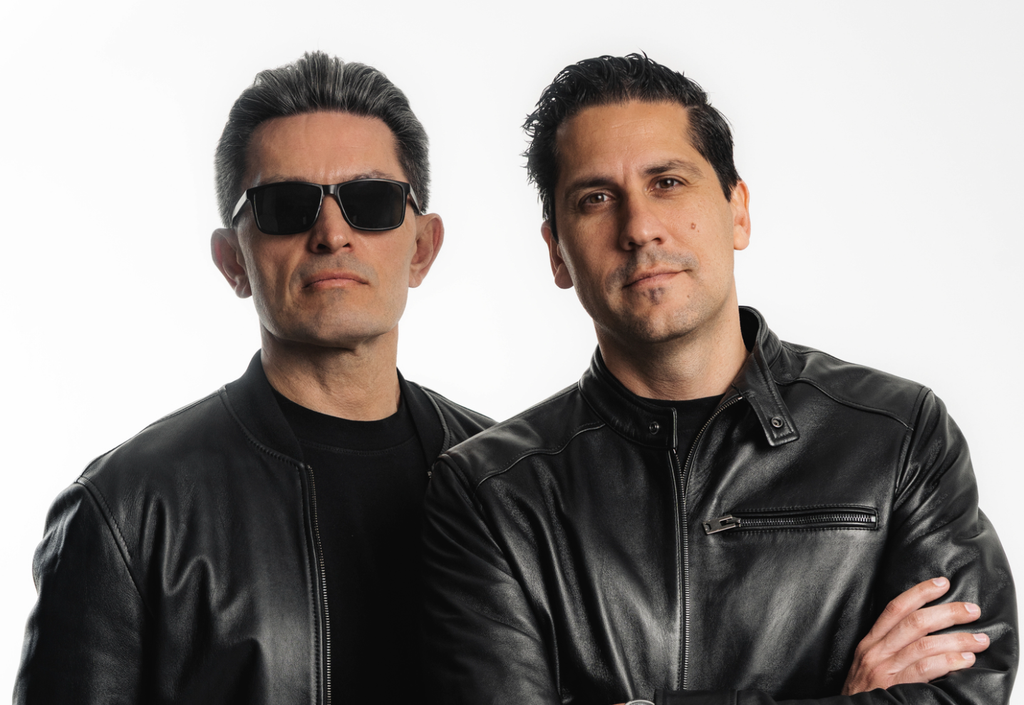
A while back, we had a chance to chat with BT & Lacy Transeau of Soundlabs.ai, an artist-forward plug-in company that focuses on ethically trained AI-based music making tools.
At this time, they’re working on a lot of stuff behind the scenes, including several more plugins that they can’t quite talk about just yet. But, their first (and currently only) plugin still remains one of the most significant steps forward in ethically-sourced AI being used as a common tool in the music production process.
I’m, of course, talking about MicDrop. While there are a ton of AI voice changers out there now, this one differentiates from the rest by existing within the confines of a DAW. That means you don’t have to go to an external website to get the voice you want. And, of course, all of the voices that feature in the plugin were entirely ethically trained on consenting parties.
This is a piece of technology I’ve been excited about for quite some time. The second I heard about it, I knew I wanted to try it out and talk a bit with BT and Lacy about how this product came to be a reality. You can read more about that in the interview piece I’ve linked above. It’s also a great time to get into MicDrop – they just unveiled a smoother tuning algorithm and a new Chorus module, and there are a lot of new models on the way.
The only thing left to do now is to fully test it out and give it the review treatment. And, while I did have an amazing chat with BT and Lacy, please note that this entire review is my honest, unbiased opinion. That’s my job, after all; to give you unbiased advice on a tool that you may want, regardless of how close I may be with the people who made it.
So, at long last, here are my thoughts on MicDrop.
More Than Meets The Eye

You’re greeted by this when you open up MicDrop.
I’ll take you through everything fairly quickly. To the left is how you adjust the audio entering the model. The tuning algorithm is on the top, and that functions similarly to autotune. You simply select what key and mode you’re singing in – the dropdown box below that scroller has everything from chromatic chords to Byzantine chords.

Turning it to MIDI brings this up. A quick note on this part: you can’t just start playing notes if you load this onto an audio track. If you’re using Logic like me, you’ll have to load MicDrop as a MIDI-controlled effect and sidechain your original audio through the plugin. You’ll have to do something different for every DAW, but that’s what you do if you’re using Logic.
This is how you can turn MicDrop into a talkbox and play live MIDI for your model to sing. You can turn on Preview mode to get a lower quality sound while you play (this helps with CPU) and turn it off to hear everything in its glory. It’s fun to play around with, and even more fun to use in tandem with the talkbox-style models to create some really Daft Punk-y stuff.
The bottom is the gate, and it’s how you can make sure your vocal is playing as clean of a sound as possible. This works like a compressor and determines just how much of the in-between sounds will make it through to the model. Notice the shark tooth thing coming up between the two blocks of audio, for example. Adjusting the attack and release will adjust that slope, while adjusting the threshold determines how high that tooth goes up and how much audio gets cut.
Believe it or not, these knobs are the most important part of the plugin. Learn to use them. They’re extremely precise, and are the difference between your vocal being cut with white noise and pure transformational bliss. Every single vocal you use is going to need these settings adjusted; it’s not just a one-size-fits-all situation. Luckily, they’re easy enough to workshop with.
Now, to the right of that segment is the model you have selected. You can pick a different model by selecting its name, which will bring up a screen looking like this:

On this page, you can see a quick description of each model and in what capacity you’d use their voice. For example, for a R&B track, you may want to use The Firm, whereas for a rock track, you’ll probably want Jupiter. It’s fun to play around with these models, but note that not all of them will work the way you may expect for every vocal you provide.
The 12 core vocalists, including Jupiter, Oxygen, The Firm, and Wynter, cover most of the spectrum, so you’ll be able to get everything you need out of that group. You can also grab more voices via packs on the Soundlabs website. I was lucky enough to be gifted most of the current models – there are some really, REALLY dope ones here, from country singers to straight up talkboxes and children’s choirs. They’re definitely all worth grabbing and playing with.
Oh, there are instruments too. Because why not.

You can turn your voice into a slap bass or a trumpet. Who even thinks of this stuff? I can see myself humming a melody into my phone, downloading the cello, and turning my voice into a cello melody line. Note that I haven’t actually downloaded some of these yet – but you can bet that, when I think I need a country spin on a vocal line or something of that variety, I’ll be hitting the download button. By the way, it’s an incredibly easy download process.
Now, let’s head back to the main tab for the FX section, which is controllable (along with the pitch of the vocals; this works like a normal pitch shifter, so I won’t take up too much time with that) in the FX tab.

You’ve got a compressor, delay, chorus, and reverb all here. I usually do most of my vocal processing via external plugins, but I will say that all four of these modules are high quality and sound great. You can simply turn them on and off with the buttons at the top here, as well as in the bottom of the far right sector in the main window.
Aside from the input/output sliders and a few other subtle things to process your vocals (such as a softclipper), that’s it. Now, it’s time to play.
Magic?
For the purpose of this review, I decided to use a normal vocal sample from a Slate Digital pack I had lying around and transform it. While, yes, you can record your own vocals and transform them or turn the plugin into a talkbox, I could see myself mostly using MicDrop in this capacity.
In the audio sample below, you’ll hear several different models that I ran the sample through. The first time the sample plays, it’s the original. After that, you’ll hear Oxygen, Wynter, the talkbox, and a children’s choir sing the sample. Check it out:
Yeah, so, that’s pretty cool.
I think that the first three models worked really, really with this sample. The talkbox, specifically, blew me away – that sounded straight out of a 1990s disco track. Note that I bounced each sample into a new track to achieve this. While playing through live, it sounds a little choppy, but it fixes itself after you bounce it out – after all, that’s what Soundlabs suggests you do.
While I don’t know if the children’s choir worked perfectly here, it’s still really cool to hear that vocal entirely transformed into something wildly different within the confines of my own DAW. It’s also good to know that each vocal you use may work better with different models, so you should keep trying them all. The technology is absolutely there and works extremely well; everything else is up to you.
Pros & Cons
Pros:
How did they do this?
There’s some real wizardry going on here. From collecting hundreds of vocals spanning every possible genre, to blending them all into one voice, to making sure the algorithms are able to process any vocal sample, to ensuring the product coming out is high quality….. this shouldn’t be possible to do inside your DAW, let alone at all. And, yet, it is.
It’s ethical.
A big question I have for the future of AI is the ethicality of it. I don’t love how artists and musicians have had their music ripped from them and trained on without their consent. Luckily, the Soundlabs team doesn’t do that. As far as I’m concerned, this is about as ethical as you can get while using AI in the music making process.
It’s easy to master.
It may take some time to get used to the gate and tuning, but once you’ve gotten there, it’s so easy to use. Being able to control technology as powerful as this with only a few knobs is pretty crazy.
Cons:
Your computer may not be able to handle this.
Pay close attention to the system requirements. This thing has the potential to brick your PC. I use a Mac Mini with a silicon chip, so I was fine. But, if you don’t meet the system requirements, you will not be able to use this. There is some crazy neural stuff going on under the hood. Make sure you know you can run it before you buy.
It’s finicky sometimes.
While it is fairly easy to master this plugin, it can also do some unexpected stuff when you don’t want it to. For example, I simply unmuted the plugin while testing and was greeted by some nasty feedback. It also might get a little annoyed if something is even a millisecond off in the gate. Be patient. This is next-level technology we’re playing with; we’re all still learning how to use it.
It’s not too cheap.
150$ USD is a decent chunk of change for a specialized tool. However, they do offer a few ways to pay, including a subscribe and save model. Plus, you get a lot with just the base version. I do think that it’s worth the price, but I do understand if it seems like a lot.
Conclusion: Should you get it?
If you’re interested in learning how AI may affect the music making process in the future, then I’d absolutely pick this up. This plugin shows that the future isn’t scary; rather, it’s bright. Tools like this reassure me that AI is not there to take over the jobs of musicians; it’s there to make the jobs of musicians easier, and to create possibilities for them that they’ve never had. This is an incredible tool. I’m looking forward to seeing what’s next.
Buy MicDrop here.

Ben Lepper is a music producer and journalist from Boston, Massachusetts.