8 TB external SSDs do exist even for the average consumer. However, they are not typically marketed that much due to the impracticality of such storage capacities for the average user. Because of this, most search results online for such a product end up with either 8 TB HDDs for NAS servers, or simple 4 TB mainstream SSDs.
That being said, even if you don’t specifically need to get an “out of the box” 8 TB external SSD, there are still ways to create your own, with the same capacity and storage technology! And it all starts with internal drives.
Why You Need an 8TB External Drive
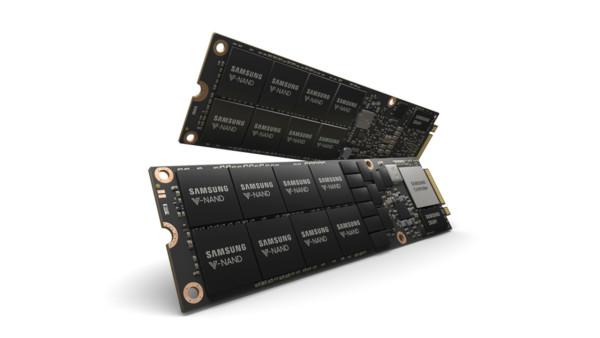
Generally, 8 TB external SSDs only make practical sense if:
- You need a massive portable backup. If you are the type that archives hundreds of GB of data per single day to physically connect with different access devices, the fast 8 TB SSDs might be on the edge of being a reasonable option.
- You want to focus on easy high-quality multimedia access. On the specific subject of file types, some people like to keep extra digital copies of official products such as Blu-ray discs, lumping them into a massive, continuous collection. With a reliable SSD model, the high capacity and its associated price could easily be justified since write operations fill up the SSD, allowing it to go way below its data limits almost indefinitely.
- If you are a creative professional on the go. An 8 TB external SSD could also make sense if you often travel around with a laptop to edit video or music. After all, raw uncompressed 4K footage, for example, could easily surpass half a TB for just an hour or two, which warrants the use of every TB that you can effectively carry around.
- You game on multiple devices but want separate copies of the same game. Some people also like to keep their games on an external device for universal access. Because today’s triple-A games can easily require more than 100 GB of available space, going for an 8 TB might make sense if you have enough time to play all of them. Even better, being an SSD will also allow the game to load much faster.
- When centralized storage with multi-device access is a direct priority. In other words, if you need a wireless NAS server for every device you own. ‘Nuff said.
Method 01: SATA Enclosure + Native 8TB SSD
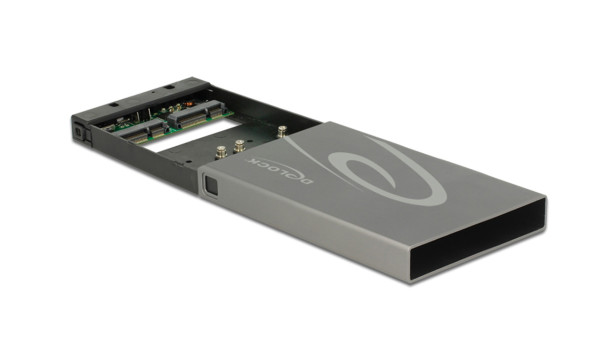
The most basic and straightforward method to create your custom external SSD. Going SATA allows you to not worry about data transfer speeds too much. So long as it is connected to a native USB 3.0 port and the PC isn’t too busy transferring data via other connections like Bluetooth, you can more or less guarantee 300-400 MB/s (MegaByte) sequential write speeds and very stable random read speeds. SATA enclosures and adapters are also very affordable. You don’t even need to worry about branding; you can even get most cheap Chinese knock-offs and use them safely.
Pros
- Intuitive, generally needs no instructions to set up and use.
- Very affordable, can even use non-branded SATA-to-USB adapters safely.
Cons
- Limited to theoretical SATA 6 Gbps speeds.
- Actual write speeds are even slightly slower.
Steps
- For both enclosures and adapters, simply align the power and data connections of the SATA connector end to the SSD.
- For adapters, be sure not to bend the connection downward accidentally, or else the pins on the SSD might break.
- Connect the other end (USB) to an available native USB 3.0 port or any USB Type-A connection that supports 5 Gbps speeds and above.
- If not yet formatted, format the disk as a fresh new drive.
- Enjoy transferring your bulk files with your 8 TB SATA external SSD!
Method 02: NVMe Enclosure + 8 TB NVMe SSD
One step more complex than SATA drives, but otherwise, also quite easy to set up. What you need to worry about using NVMe-based 8 TB external SSDs is that they are generally several times faster than SATA SSDs when it comes to sequential speeds, so the connection type is just as important as the SSD itself.
That being said, limitations to connection types and current USB speeds mean that 8 TB external NVMe SSDs can typically only go around 1200 MB/s (gigabyte), which is just a fraction of the actual maximum speed of PCIe 3.0 (3000 MB/s) and PCIe 4.0 (7000 MB/s) NVMe SSDs.
Pros
- More than double the sequential speed of external SATA SSDs.
- Potentially more portable, depending on enclosure type.
Cons
- It might be more practical to just use 4 TB NVMe SSDs and a multi-slot enclosure like this.
- Exorbitantly more expensive than SATA SSDs.
Steps
- Choose the correct supporting enclosure that includes a cable that can achieve at least 10 Gbps (gigabit) speeds. Best if you can choose a product that comes with Thunderbolt connections.
- Align the pins of the NVMe SSD to the external M.2 slot.
- Make sure that the USB port that it connects to also supports at least 10 Gbps on the lower end, then 20 Gbps and higher on the top end.
- If not yet formatted, format the disk as a fresh new drive.
- Enjoy your ultra-fast sequential transfers with your 8 TB NVMe external SSD!
Dedicated 8TB External Models (All-Types)
For dedicated 8 TB external SSDs, the only thing that you need to take note of is its maximum advertised speeds. If you use a device that supports higher speeds, then going for the more expensive ones may be worth it. Otherwise, just stick to models that come close to native SATA 6 Gbps speeds (around 500 MB/s).
Pros
- No setup is required. Just plug-and-play.
Cons
- Speed wildly varies per model.
- Sequential speeds are mostly determined by the USB port it attaches to, not the device itself.
- Occasionally needs a double-check whether the product is a drive bay (an empty box where several storage drives are installed).
Steps
- Simply find the fastest USB port that supports the top advertised speed of your dedicated external SSD.
- Enjoy!
Making Your Own 8 TB External SSD More Flexible?
As we asserted at the beginning of the article, 8 TB SSDs are hardly justifiable given the specialized uses for such high-speed, ultra-capacity drives compared to how we use PCs for everyday use. But, if those professional needs are ever required, it is generally more flexible to create your custom external SSD. Not only can you fine-tune specifications along the way, but if needed, you can always re-install these drives as internal storage if a more permanent solution is more acceptable.
You can also do the opposite, recycling similar form factor SSDs as external units, although portability becomes somewhat lost for SATA-based setups.

Magnetic byline note: This byline is used for staff produced updates and short announcements, often based on press materials and official release information. Editorial responsibility: David Ireland (Editor in Chief) and Will Vance (Managing Editor). About: https://magneticmag.com/about/ Masthead: https://magneticmag.com/masthead/ Contact: https://magneticmag.com/contact/