The Live S is Loupedeck’s smallest and most affordable system to date, and it seems squarely designed for streamers. I’ve spent the last month or so using the Loupedeck Live S daily for a combination of productivity, gaming, and streaming, so let’s get into my thoughts on this nifty little piece of gear.
Loupedeck Live S Design & Features
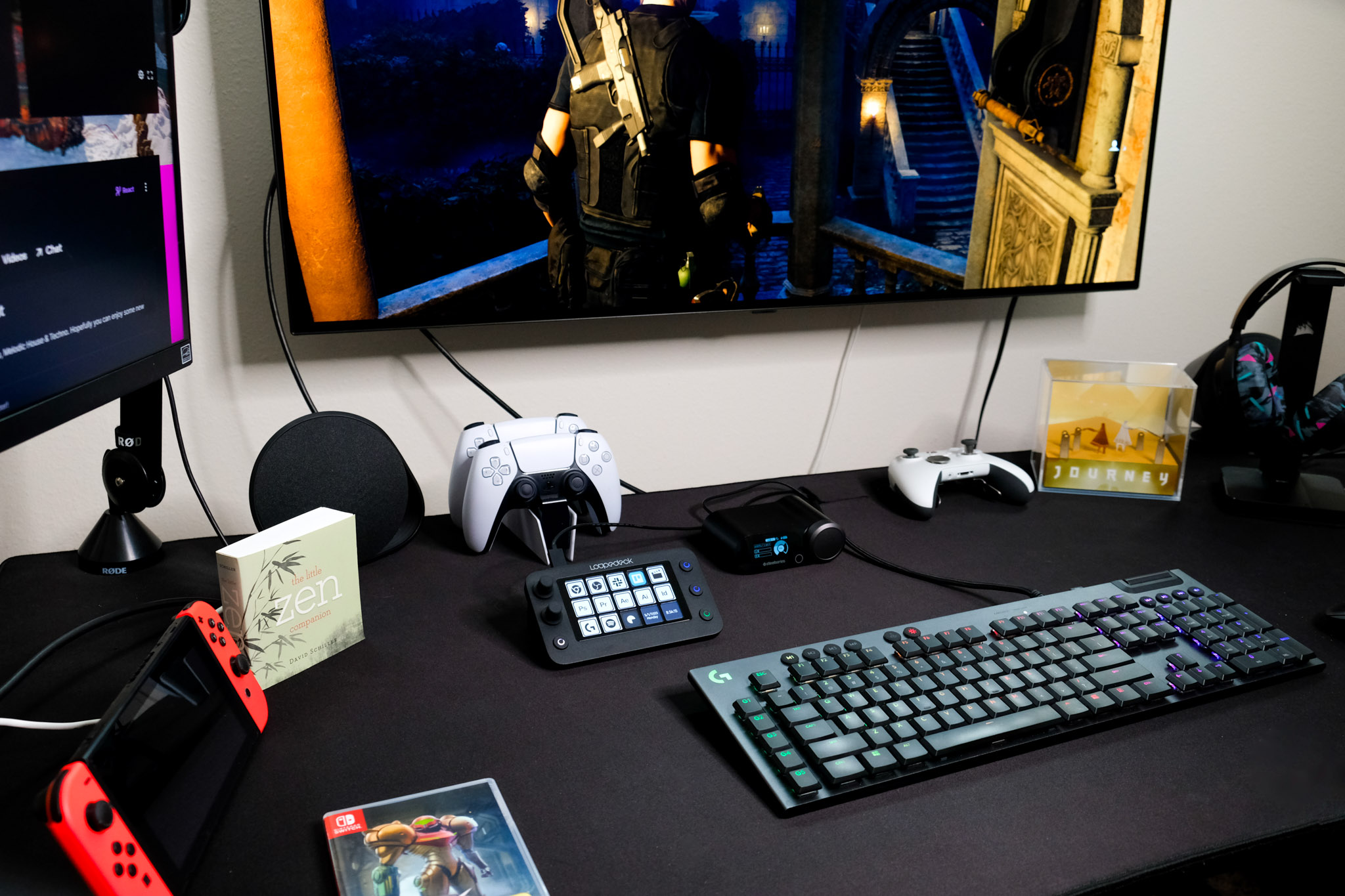
The Loupedeck Live S is a small but feature-packed control pad equipped with 15 touch-sensitive buttons, 2 analog dials, and 4 physical buttons. The 15 touch buttons are just a single screen, so swiping across them vertically or horizontally actually allows you to cycle through multiple pages of buttons & dials. Those 15 touch buttons offer very mild haptic feedback, and although I initially thought I would miss the tactile feel of my Streamdeck buttons, I actually found myself really enjoying the touch screen buttons. Especially once I downloaded some custom animated icon packs. This allowed me to have each of my sources in OBS animated when active and dimmed and not animated when inactive. This was a really neat little feature that helped me know at a quick glance what operations were happening on stream without me even looking at OBS.
The Unit itself is surprisingly small but doesn’t feel cramped. It comes in around 5.9in wide, 3.4in tall, and 1.2in thick. It’s extremely portable and makes it easy to use at the office or at home. It comes with a detachable stand that is easy enough to attach, but it feels very flimsy as it is just a simple piece of plastic. I’ve not had any issues with it yet, but every time I put it into my pack to take it on the road I do worry it won’t survive the trip.
One of my favorite features of the design of the Live S is its analog dials on the left-hand side of the unit. They prove wildly useful in loads of applications, including general volume control (for those of us who don’t have one on our keyboard or use a dedicated audio mixer), to controlling the brightness on your laptop at work, or even using it to control your DAW through MIDI dial mapping.

Streaming With the Live S
When it comes to streaming, the Live S is an absolute workhorse. With the press of a single button, I could start streaming, start recording, open up my creator dashboard on Twitch, and navigate to Twitter to let everyone know that I’m now live. It was remarkably simple to execute once I created the macro actions in its native software. Once I was up and running I could create multiple pages of actions for controlling every aspect of my stream.
The Loupedeck Live S has native integration with OBS and that is where I spent a lot of my energy customizing the Live S. With the press of one of its physical buttons I had 15 custom actions at my fingertips tailored just to controlling scenes & sources in OBS. One touch and I’d swap from my main gaming scene with game capture, a single camera, and chat feed to my close-up scene that ditched the game capture to focus on me while I engage with chat or while I am doing things on the desktop, etc. I customized my second screen of 15 buttons to control sound effects. The Loupedeck Live S comes pre-loaded with a sound pack and there are others available through its marketplace. But you can also input your own sound effects and trigger them with a button press. While on this page I was able to customize the dials to control the output volume of the sound effects so I could have precise control of what my viewers were hearing and how loud. It was incredibly simple and intuitive.
The Loupedeck Live S also has native integrations with Twitch which allowed me to have information at a glance and also have precise control over certain Twitch specific actions. The plug-in allows you to view your live viewers right on the device, which would be ultra helpful to any streamer without a second monitor or who doesn’t want to pull up their dashboard on a mobile device. The most convenient features that I set up on the Twitch page of my Live S were the chat options. With the press of a button, I could switch between Subscriber-only chat mode, Follower-only chat mode, switch into Slow Chat mode, and more. It made customizing my viewer’s experience snappy and convenient. And for those streamers who have ads, you can run your commercials with a push of a button.
Overall, streaming with the Live S, which is clearly what this device is aimed at, is a great experience especially once you put some elbow grease into customizing it through its software.
Loupedeck Software
All of the customizations for your Live S are done through its native software. It’s easy to use and the number of options to make the Live S your own is welcome. Within an hour I had separate workspaces & profiles set up for work, gaming, and streaming. All armed with custom actions, macros, & button configurations perfectly tuned for their job.
A major selling point for Loupedeck over Elgato is that the Live S comes pre-loaded with several major Adobe applications profiles & plugins. This makes getting up and running in your editing program that much faster. I was editing thumbnails and using the Live S to trigger my most used tools such as Dodge & Burn, adjusting the opacity and size of my brushes with the dials, and grouping my layers with the touch of a button in Photoshop.
I was a little disappointed by the lack of Mac plugins available from its marketplace, but all in all the selection is decent enough to make solid use of your unit. The one place I felt it was lacking across both Mac & PC was its home control options. Philips Hue was there, as was Nanoleaf, although I couldn’t get the Nanoleaf plugin to function ever. That is about it, though, so half of my hodgepodge house of Smart Lights & Fixtures wasn’t usable through the unit. In addition, the marketplace didn’t seem as robust as that of my Streamdeck out of the box.

Conclusion
After a month plus of daily use with the Live S, I can strongly recommend it to users whose main use will be streaming. It makes the tedious acts of getting the stream up and running, and controlling it a breeze. It is still a solid device for users aimed more at productivity, given you can put time into its software to achieve what you need. The same could be said for most control pads, though, and the Live S is equipped with physical buttons and dials not found on some competitor devices that make it appealing. I’ll definitely be using it daily moving forward.