Review At A Glance
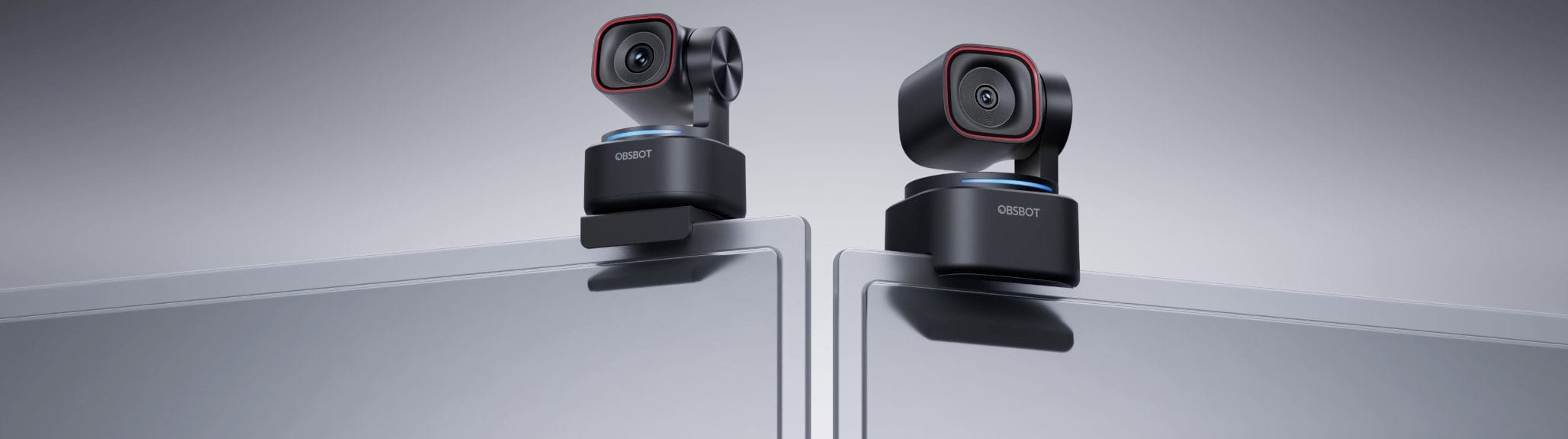
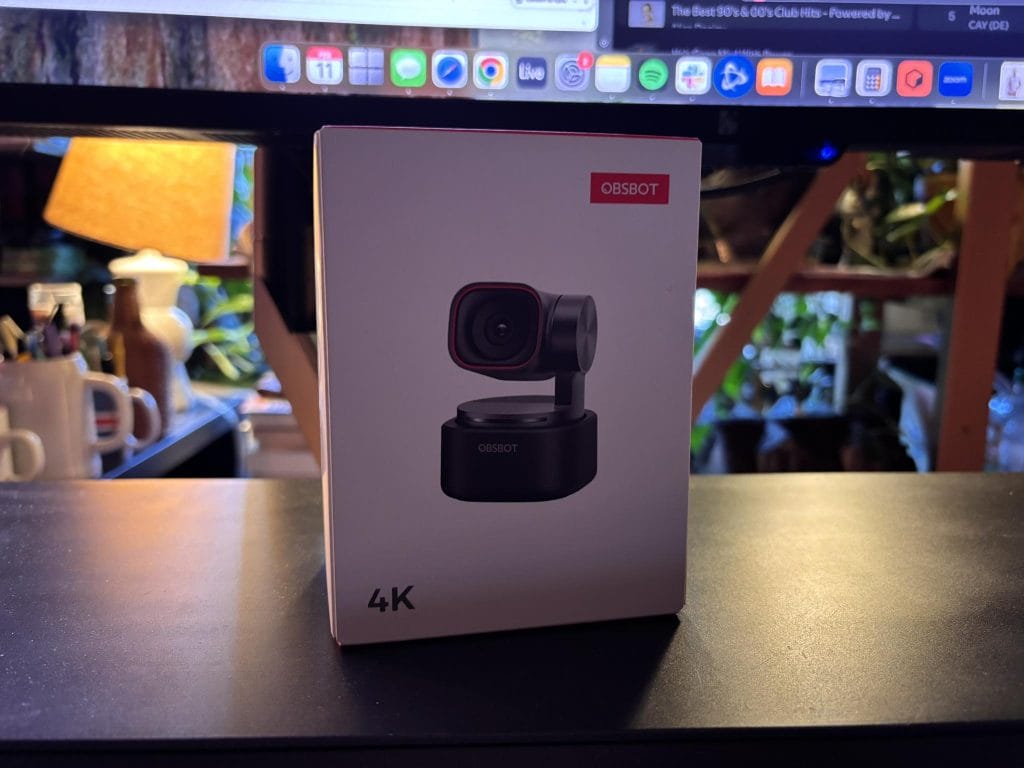
The OBSBOT Tiny 3 is a compact 4K webcam built around a motorized two-axis gimbal, a large 1/1.28-inch CMOS sensor and automated subject tracking. I tested it for video meetings, recorded content and desk-level demonstrations, where its fast setup and controlled camera movement separated it from standard fixed webcams.
Its $349 price places it at the premium end of the webcam market. The camera needs to save enough setup time or cover enough filming situations to justify costing around $150 above capable 4K alternatives.
The OBSBOT Tiny 3 is worth buying in 2026 for presenters, streamers and artists who regularly film without a camera operator. Its image quality, subject tracking and spatial microphone system support solo production. People who remain seated during occasional calls can get comparable 4K resolution from a webcam costing around $150 to $200.
What is my verdict on the OBSBOT Tiny 3?
The Tiny 3 earns its price when you regularly move during recordings. Its gimbal can follow a person across a room, point downward for desk demonstrations and move between saved positions. That lets one camera cover tutorials, interviews and livestreams with fewer manual adjustments.
Image quality is another reason to consider it. The 1/1.28-inch sensor retains detail under standard indoor lighting, while Dual Native ISO and DCG HDR help manage rooms with uneven exposure. Its 4K frame has enough resolution for cropping and reframing during editing.
I would buy the Tiny 3 for weekly video production, standing presentations or multi-person conversations. I would skip it for occasional Zoom calls, fixed seated streams or any setup that already includes a mirrorless camera and external microphone.
The headline feature list can sound like marketing until you see it in practice, so I focused on a few real questions. How strong is the image in standard indoor lighting, how fast does it lock focus, how dependable is tracking during normal movement, and how usable are the microphones when I do not want to patch in an external mic. I also cared about practical details like mounting, travel, privacy behavior, and whether the control software helps or gets in the way.
OBSBOT Tiny 3 Design and travel setup
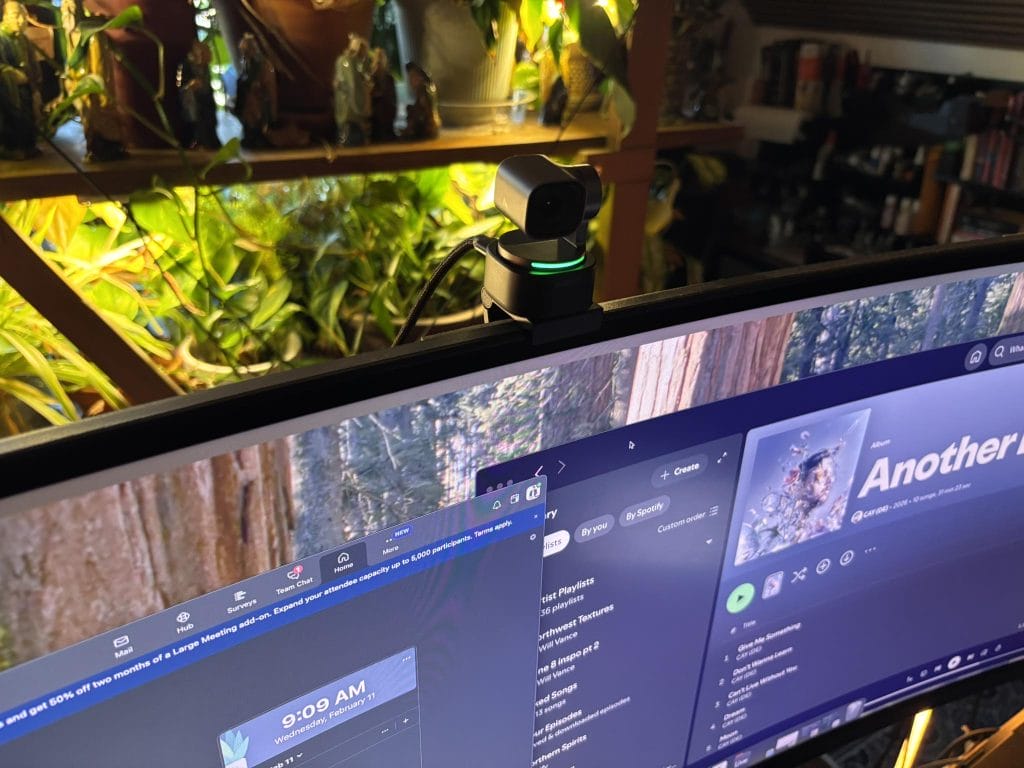
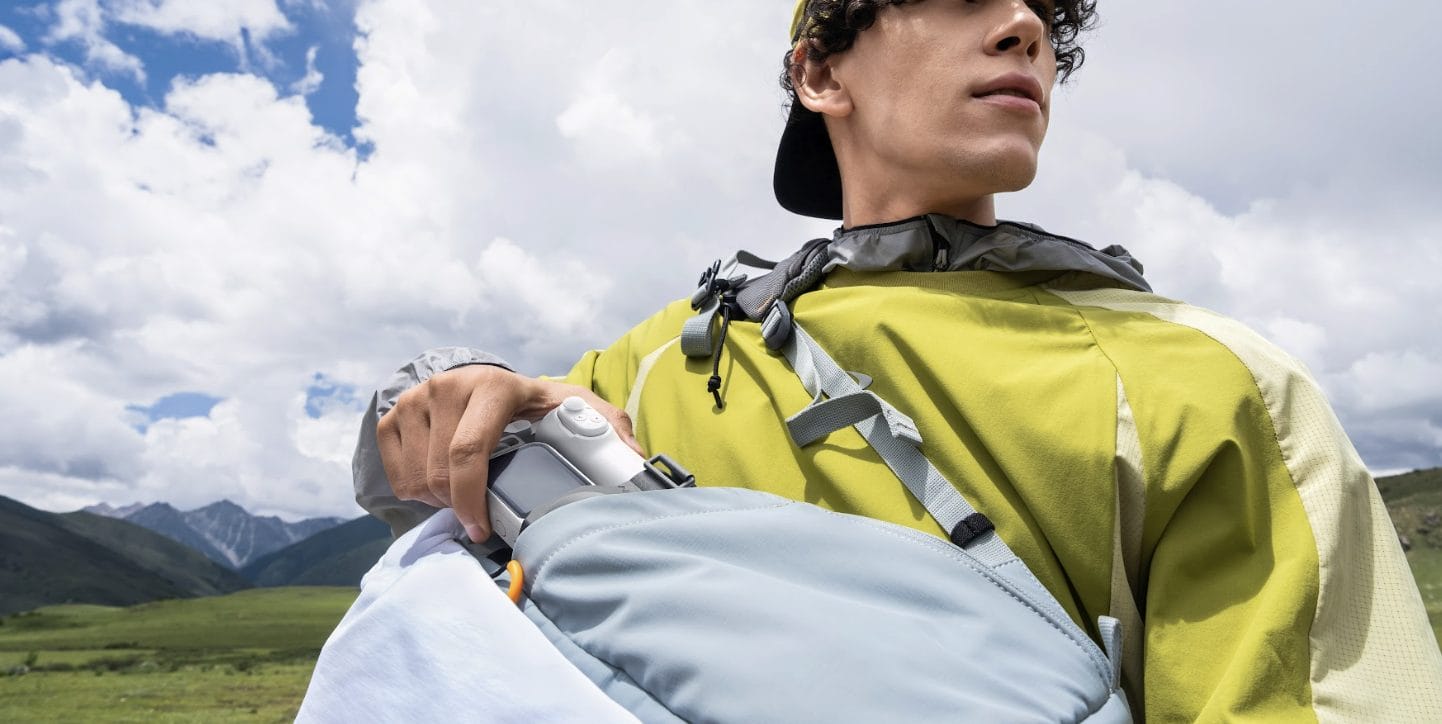
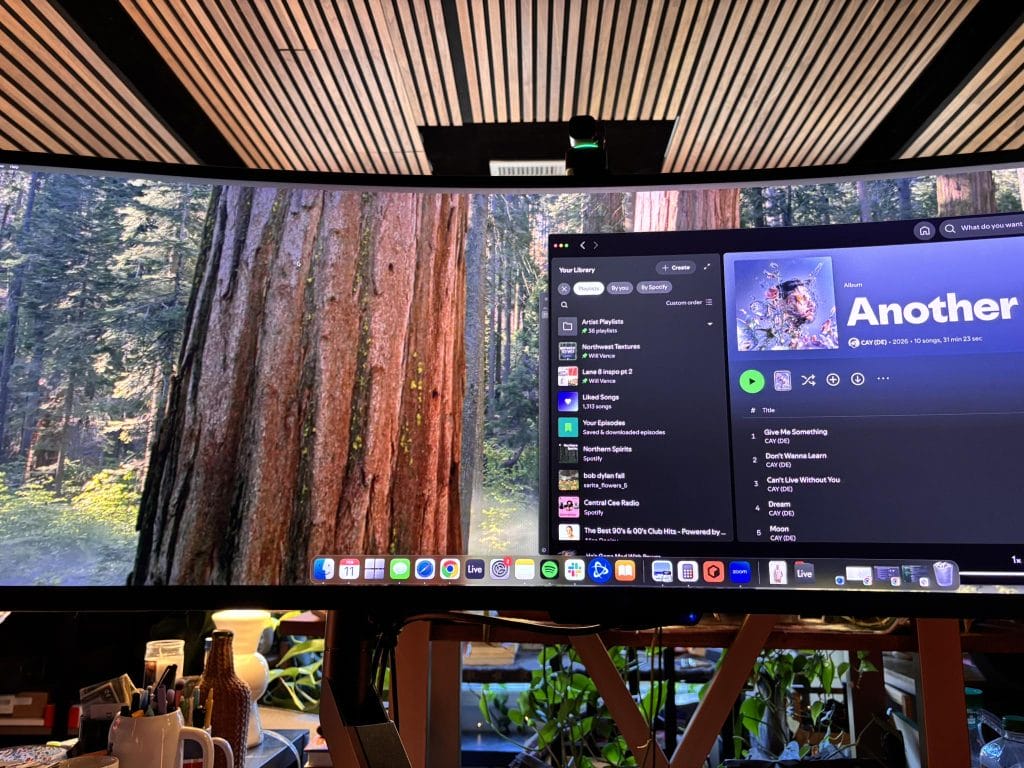
The first thing you notice is the size. The Tiny 3 takes up little space on a monitor, which matters if you run multiple displays or already have a crowded desk. It also travels well because the included carrying case provides a place to store it in a bag, and the magnetic mount makes quick placement of the laptop and monitor realistic without extra accessories.
That magnetic mount also reduces friction during setup. I can drop it on a screen, connect USB, and move on. For my workflow, that matters more than a long list of features because the camera only helps if I actually use it consistently. The small footprint also made it easier to keep the camera in a stable, centered position rather than balancing it on something temporary.
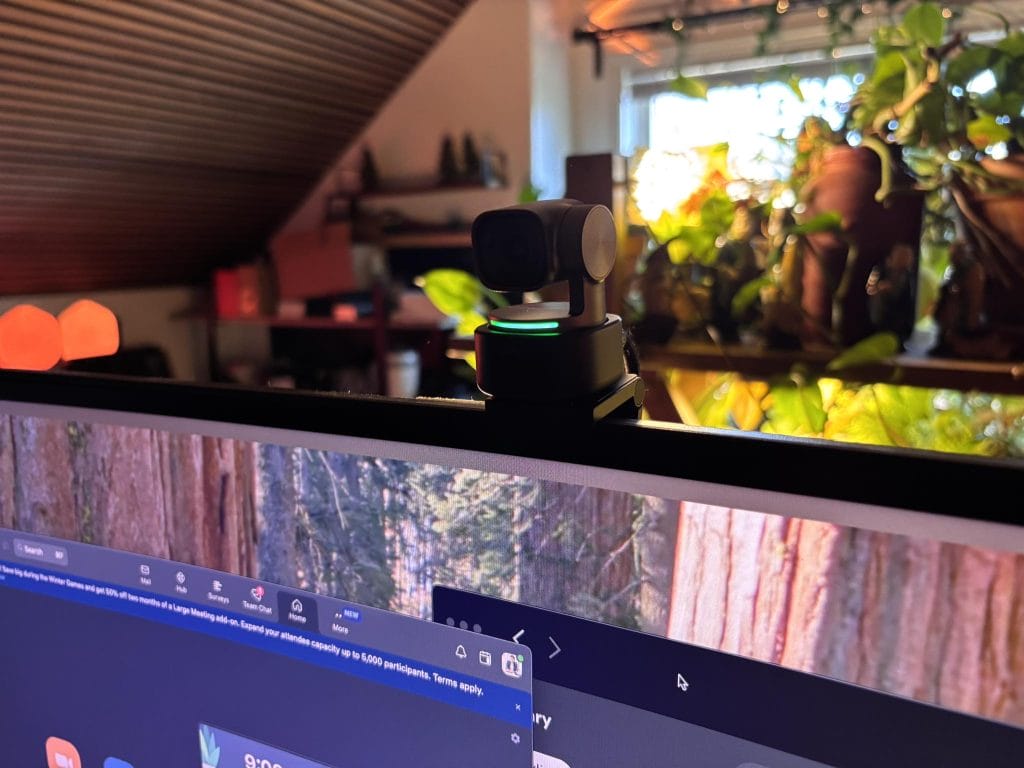
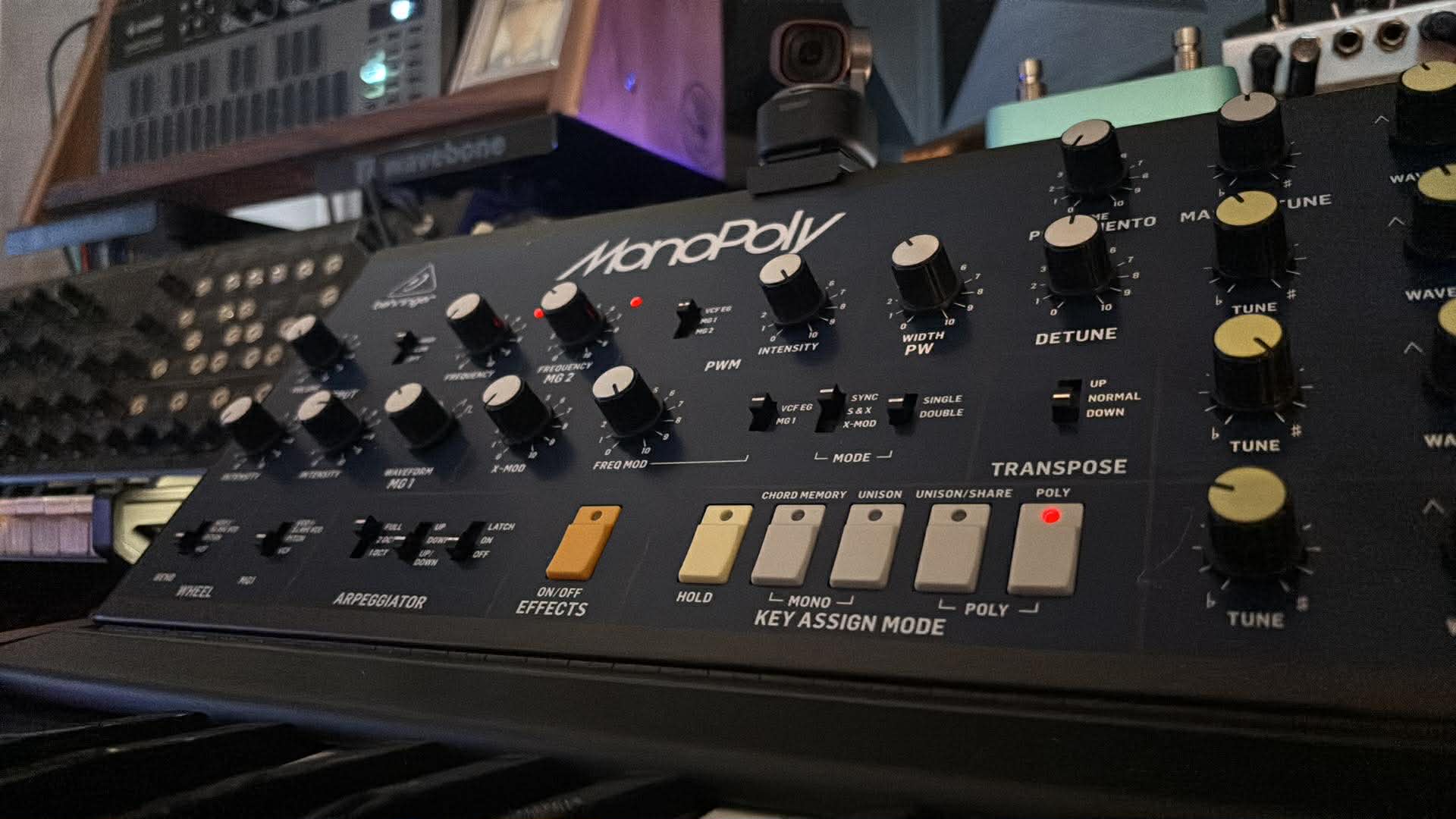
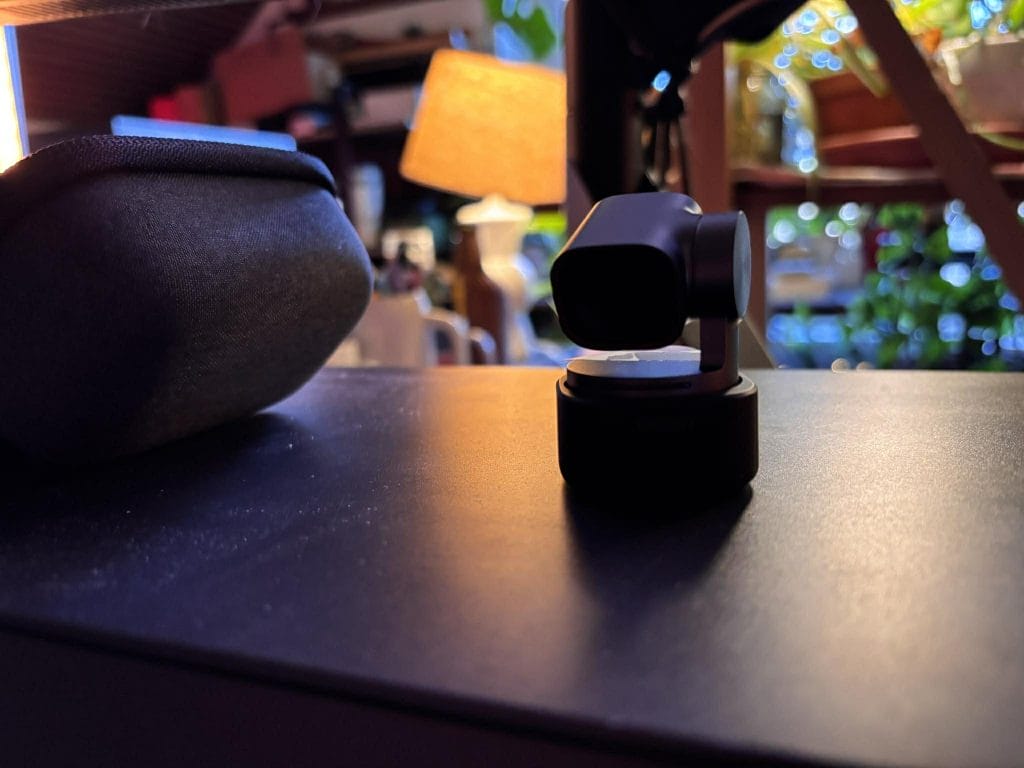
The gimbal design changes what a webcam can do in a normal work setting. Being able to tilt the camera down to show a desk, notes, or an object on the table sounds minor, yet it ends up being a feature I reached for repeatedly. If I want to show a keyboard shortcut sheet, a piece of gear, a document, or a quick sketch, I can do it without picking up the camera and without re-aiming a clamp.
Heat is part of the reality with higher resolution and heavier processing. During long 4K sessions with effects enabled, the camera can get warm. I paid attention to that because heat can cause throttling or stability issues, and I did not see any in my sessions. The camera stayed responsive, and the feed stayed stable through the kind of long calls and long recording blocks that make heat show up.
Image quality, sensor behavior, and why it looks different from laptop cameras
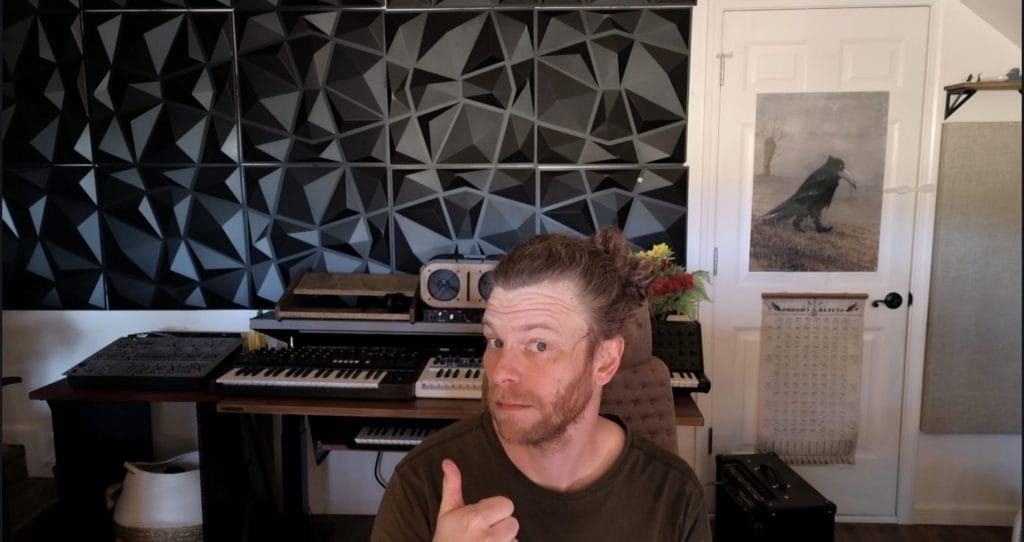
Image quality is the main reason I would look at this model, and it delivered in the areas I care about most. The Tiny 3 produces a sharper image than built-in laptop cameras, and it holds detail in a way that reads as more professional in standard indoor lighting. If you have spent years trying to make a laptop camera look acceptable by adding lights, you will recognize how quickly a better camera changes the baseline.
4K at 30 fps gives the camera room to render fine detail, and it also gives you flexibility in post if you record content. Even if you stream or meet at 1080p, capturing at a higher resolution can still help with clarity before the call platform compresses the feed. Once webcam quality reaches a certain level, internet bandwidth and platform compression become the real limits, and that point shows up fast with a camera like this.
It cannot replace a mirrorless camera when you need interchangeable lenses, optical zoom, high-bitrate onboard recording or direct HDMI output. It also cannot replace a close microphone for a commercial interview or paid educational course.
The distinction depends on the intended release. Lloyd Barwood explained in my interview about social media and credibility that performance videos can help newer artists build recognition when established DJs support their music. The Tiny 3 can handle those recurring studio clips and direct-to-camera updates without adding a lengthy filming process.
For DJ sets and venue livestreams, a dedicated production camera remains the better fit. My OBSBOT Tail 2 Review: The AI Camera I Actually Use For DJ Sets And Livestreams covers a camera with onboard recording, network connectivity and professional video outputs.
The larger sensor also changes the look in a way laptop webcams rarely manage. The background blur looks natural because it comes from optics and sensor behavior rather than aggressive software masking. In a normal office setup, that natural separation between subject and background made the image feel cleaner without forcing me into a fake blur effect. Laptop cameras can achieve a similar result through software, but the edges tend to look rough, and fine details like hair become a problem.
Low-light performance stood out. In rooms where a typical webcam starts to produce a compromised look, the Tiny 3 held up better and avoided a major frame-rate drop. That matters for meetings because poor lighting is common, and it also matters for content creation because you cannot always control the environment, especially if you travel or work in shared spaces.
1080p at 120 fps is a separate feature that I cared about more than I expected. It enables smooth slow-motion footage without heavy noise or stutter, and it also gives you a clean high-frame-rate option for demonstrations where motion clarity matters. If you record tutorials, unboxings, desk demonstrations, or product walkthroughs, that mode gives you another useful tool without pulling out a separate camera.
Autofocus, framing options, and how the camera behaves in motion
Autofocus can make or break a camera in real use, and this one behaved the way I want a modern webcam to behave. Focus was fast, and it switched reliably between faces and objects. That made desk demonstrations much easier because I could hold something up to the camera, let it lock in, then move back to a normal talking position without waiting for the image to hunt.
The field of view options also mattered. The wide view looked best for most situations because it gives the camera room to track movement without forcing frequent reframing, and it also looks more natural for calls. Narrower modes are useful when I want tighter framing, especially if the background is cluttered or I want the frame to read more like a traditional head-and-shoulders shot.
Digital zoom is often the weak point on webcams, so I paid attention to how it looks when pushed. Here, the zoom stayed sharp enough to be usable, even when zoomed in closely. I would still treat extreme zoom as a situational tool, yet the baseline quality gives it room to work without immediately falling apart.
Artificial background blur is available, and it can be useful, yet I found it looked best at low strength. At higher levels, edge artifacts become visible around hair and fast-moving objects, which draws attention in the wrong way. The natural background separation from the larger sensor did a lot of work for me, so I used the artificial blur as a light correction rather than a heavy effect.
Beauty modes are also available. At default settings, the effect can slightly improve appearance, which can help on long meeting days when lighting and camera angles are not ideal. High settings look unnatural, so I treated those sliders as small adjustments rather than a main feature. Color filters exist too, and I tried them, yet the natural image looked better than most of the presets, so I kept my setup close to a neutral baseline.
Tracking and control options
Motion tracking is one of the most useful features here, and it sets this camera apart from standard webcams. In practice, auto-tracking worked reliably and kept me centered when I moved around. I could stand up, shift to the side, or reach toward a shelf, and the framing stayed usable without me thinking about it.
I preferred single-person tracking without auto zoom because it felt more natural. Auto zoom can look busy, especially on calls where the platform compression already adds artifacts during motion. With single-person tracking and no automatic zoom shifts, the camera movement felt smoother, and the frame felt stable, which matters for long sessions.
Tracking speed also matters, and the standard speed setting felt like the best balance between smoothness and responsiveness. Faster settings can look twitchy, and slower settings can lag behind normal movement. The default behavior landed in the middle in a way that looked intentional on screen.
AI tracking also avoided being distracted by random motion better than older tracking systems. In a typical room, there can be background movement from screens, reflections, or other people walking behind you. The camera stayed focused on the intended subject more consistently than earlier-generation tracking systems I have used in webcams and phone-based setups.
Hand tracking ended up being more useful than I expected, especially for demonstrations like cooking, building projects, or desk work where the subject shifts from face to hands. If your content involves showing steps, tools, or small objects, that mode can reduce the need for a second camera.
Voice tracking worked well, and it can shift the camera toward whoever is speaking. For a multi-person setup, that feature can make a single camera feel like a small production tool. If you record interviews, two-person couch interviews, or panel-style calls, it gives you a framing system that does not require a dedicated operator on a joystick.
Voice commands also performed consistently for privacy control. Commands to put the camera to sleep and wake it up worked reliably in my testing, and the physical sleep motion makes it clear when the camera is not recording. That physical feedback matters because software toggles can feel ambiguous, and a visible camera posture reduces uncertainty during meetings.
Software, audio, and workflow tools
The control software played a big role in how usable the system felt. The interface gave me access to framing, image quality, microphones, and effects without being confusing, and I could get to the settings I wanted without hunting through hidden menus. For a camera that leans heavily on software features, that matters a lot because the experience can fall apart if the app feels bloated or unstable.
The microphone system surprised me in a good way. Built-in microphones sounded far better than typical laptop mics, and they were usable without an external microphone for calls and quick recordings. If you already have a dedicated mic, you can keep using it, yet it felt realistic to rely on the camera audio for many situations.
Directional audio mode did a good job of reducing background noise while keeping speech clear.
I tested noise reduction with louder background sounds, such as music and a vacuum cleaner, and the processing remained effective enough that speech remained usable. It does not turn a noisy room into a treated studio, yet it does reduce the kind of constant low-frequency and broadband noise that makes laptop mics hard to tolerate on calls.
Multiple audio modes also made the camera more flexible across use cases. I could see it working for solo streaming, interviews, podcasts, and even basic music recording where the goal is clean speech capture rather than a studio vocal take. That range matters because many people use one camera for work calls during the day and content creation at night, and the audio system supports that switch without extra hardware.
The software’s teleprompter functionality also matters to creators. If you read scripts or notes, keeping your lines visible while staying aligned with the lens helps your performance and pacing. It also reduces the constant eye-line drift that makes a video feel less direct.
Some advanced features can push system resources. Eye-tracking can keep eye contact with the camera, yet it uses more processing power, and it can look unnatural depending on the setting and the lighting. I treated it as a situational tool rather than a default mode, and I would recommend testing it carefully before using it in a client-facing meeting or a published video.
Software-based background replacement can also serve as a green-screen substitute when lighting is limited. Results depend on how clean your subject separation is, and edge quality can vary with hair and fast movement. Still, as a practical tool for meetings, it can solve a real problem when the environment behind you is not camera-friendly.
Remote camera control through a browser also has real production value. If you run a live stream with a remote operator or you want someone else to handle framing while you present, remote control turns the camera into a small live production component rather than a personal webcam.
Compatibility adds another layer. Support for game consoles and Stream Deck expands how you can use the camera beyond typical meeting workflows. If you build a streaming setup, being able to trigger presets and camera behaviors from a control surface simplifies the workflow and keeps your hands off the mouse during a live session.
How much does the OBSBOT Tiny 3 cost in 2026?
OBSBOT currently sells the Tiny 3 for $349 in the United States. Retailer promotions may lower that price, though $349 remains the price buyers should use when comparing it with competing webcams.
The less expensive Tiny 3 Lite costs $199. It retains 4K capture, motorized movement and automated tracking, though it uses a smaller 1/2-inch sensor. The Tiny 3 justifies its additional cost with better low-light performance, faster focus behavior and a more capable microphone system.
The $349 price also places the webcam above the Insta360 Link 2 and Logitech MX Brio, which generally cost around $200. Buyers should pay the premium when the Tiny 3’s larger sensor, 1080p recording at 120 frames per second and audio features will be used regularly.
Check the current OBSBOT Tiny 3 price and availability.
Who should buy the OBSBOT Tiny 3?
The Tiny 3 is designed for people who produce video regularly and want one USB camera to handle several filming positions. That includes music producers recording tutorials, instructors teaching online and streamers who move away from their desks.
Artists who manage their own promotion can also use it to record studio clips without asking someone else to operate a camera. In my interview with Deep Forest, Eric Mouquet explained that he prefers spontaneous phone videos because highly planned content can interfere with his music. The Tiny 3 supports a similar low-preparation approach while providing better image quality and automated framing.
Consider buying it if you:
- Record video every week
- Move around during presentations or tutorials
- Need overhead views of equipment and documents
- Want one USB camera for calls, streaming and recorded content
The camera also fits interview production. Voice tracking can redirect the camera toward a person who is speaking, while group tracking can keep multiple people inside the shot. That can reduce the amount of manual camera work needed for a small podcast or seated conversation.
Can the OBSBOT Tiny 3 replace a complete camera setup?
It can replace a basic camera, desktop microphone and camera operator for calls, tutorials and casual livestreams. The sensor and autofocus produce a finished image quickly, while automated tracking handles movement without another person behind the camera.
It cannot replace a mirrorless camera when you need interchangeable lenses, optical zoom, high-bitrate onboard recording or direct HDMI output. It also cannot replace a close microphone for a commercial interview or paid educational course.
The distinction depends on the intended release. Lloyd Barwood explained in my interview about social media and credibility that performance videos can help newer artists build recognition when established DJs support their music. The Tiny 3 can handle those recurring studio clips and direct-to-camera updates without adding a lengthy filming process.
For DJ sets and venue livestreams, a dedicated production camera remains the better fit. My OBSBOT Tail 2 Review: The AI Camera I Actually Use For DJ Sets And Livestreams covers a camera with onboard recording, network connectivity and professional video outputs.
Is the OBSBOT Tiny 3 still worth buying in 2026?
Yes, if automated camera movement solves a recurring filming problem. The Tiny 3 combines a large webcam sensor, fast autofocus and motorized tracking inside a camera that connects over one USB cable.
I would buy it for weekly tutorials, interviews and livestreams where the subject regularly moves or changes position. The saved views and desk-facing angle can reduce preparation time enough to justify the premium.
I would choose the Tiny 3 Lite or Insta360 Link 2 if tracking is needed and the budget is closer to $200. For fixed desk calls, the Logitech MX Brio offers capable 4K video without charging for a motorized system.
The Tiny 3 does its best work when the camera needs to follow the presenter. Buyers who can identify that need before ordering are most likely to get enough from the $349 purchase.

Will Vance is a professional music producer who has been involved in the industry for the better part of a decade and has been the managing editor at Magnetic Magazine since mid-2022. In that time period, he has published thousands of articles on music production, industry think pieces and educational articles about the music industry. Over the last decade as a professional music producer, Will Vance has also ran multiple successful and highly respected record labels in the industry, including Where The Heart Is Records as well as having launched a new label with a focus on community through Magnetic Magazine. When not running these labels or producing his own music, Vance is likely writing for other top industry sites like Waves or the Hyperbits Masterclass or working on his upcoming book on mindfulness in music production. On the rare chance he's not thinking about music production, he's probably running a game of Dungeons and Dragons with his friends which he has been the dungeon master for for many years.