Table of Contents
I’ve never been a big fan of drinking games. I’d much rather just drink a couple of beers with my friends before a show or a party in college than be distracted by the antics of games like Beer Pong and Flip Cup.
However, the one game I can always get behind a good old-fashioned power hour. I’ll share everything I’ve learned about throwing a killer power hour in this article. No matter what type of music you’re into or what kind of friends you have, I’ll cover all the essentials everyone older than 21 needs to know. I’ve thrown my fair share of power hours, and while a lot has changed in the music curation landscape since my college days, these changes are for the better.
Plenty of new tools allow you to create your own mixes and curate music without relying on cheesy YouTube compilations interrupted by ads and we’ll be using my favorite one, DJ.Studio to create a power hour honoring and dedicated to everyone’s favorite melodic techno label, Afterlife.
Learn More About DJ.Studio Right Here ️🔥️🔥
Introduction to Power Hour
You probably stumbled upon this article looking for tips and tricks, so you likely know what a power hour is.
And no, I’m not talking about a productivity hack for your 9-to-5 job. I’m talking about the beer-drinking game where you take a shot (a small sip of beer) every minute for an hour. By the end, it sneaks up on you because you drink several beers in one hour, shot by shot. It goes without saying that it’s most popular on college campuses, but I’ve seen some pretty epic power hours go down at tailgates, music festivals, and other places, too. I’ve linked a couple of the more popular ones I’ve seen online so that you can get a rough idea of all the different variations and styles people get down on with power hours.
But it doesn’t take a musical savant to see that even the more popular ones below are a little cheesy and corny. So, let’s just go into this piece’s real meat and potatoes and talk about how we can turn one of the hardest-hitting catalogs of music in modern dance music into a 60-minute mini-mix to use at your next power-hour function.
How To Make A Power Hour Mix
This section will cover everything you need to know about creating the best Power Hour playlist imaginable. You can find many different ones on YouTube or SoundCloud, but they often miss the mark and are cheesy and half-baked. So why not take control and put the curation back into your own hands?
There are plenty of awesome tools that make this process fast and easy. Let’s discuss how to use them.
What Works Best For Power Hours
Two factors make or break an excellent Power Hour mix: the playlist’s theme and energy flow. We’ll focus on the theme first. The most common themes for power hours are decade-specific playlists, like the best songs of the 90s, 80s, 2000s, and 2010s. These are easily found on streaming platforms but are just the entry point.
You can get creative with your themes:
- Label-specific Power Hour: If a label has a large enough catalog, like Afterlife, which we’ll be doing here in just a moment, you could have 60 drops in 60 minutes.
- Music festival Power Hour: Create a mix of the best songs from artists on the lineup.
- Genre-specific Power Hour: Compile the best Deep House songs of all time into a 60-song mashup.
The sky is the limit as long as you find a vibe that resonates with you and your friends.
Making A Power Hour Playlist
There’s no better tool than DJ.Studio for making a Power Hour playlist. It’s branded as a DAW for DJs, but you don’t need to be a music producer or a DJ to get the most out of it. It makes it easy to source, pull music, and create seamless DJ mixes. I’ve used it to create MP3 mixes of my favorite Spotify playlists for camping trips and to curate our Rhythm Radar series. Creating a Power Hour playlist is one of the easiest and most fun ways to leverage this software.
We’ll walk through creating an Afterlife Power Hour mix, showing every step of the process.
Learn More About DJ.Studio Right Here ️🔥️🔥
Step 1: Find The Music
The first and arguably most fun step is finding the music you want to include. DJ.Studio allows you to source music from various streaming services. My favorite, and the one we’ll use today, is Spotify. We all love making Spotify playlists; you might already have one perfect for this theme. Fortunately, labels like Afterlife or their fans often curate discography-based playlists of all the label’s music.
We’ll leverage this work by importing one of these playlists into DJ.Studio and rendering it for our Power Hour. Let’s use the label-made playlist below as the basis for our mix!
Step 2: Import The Music To DJ.Studio
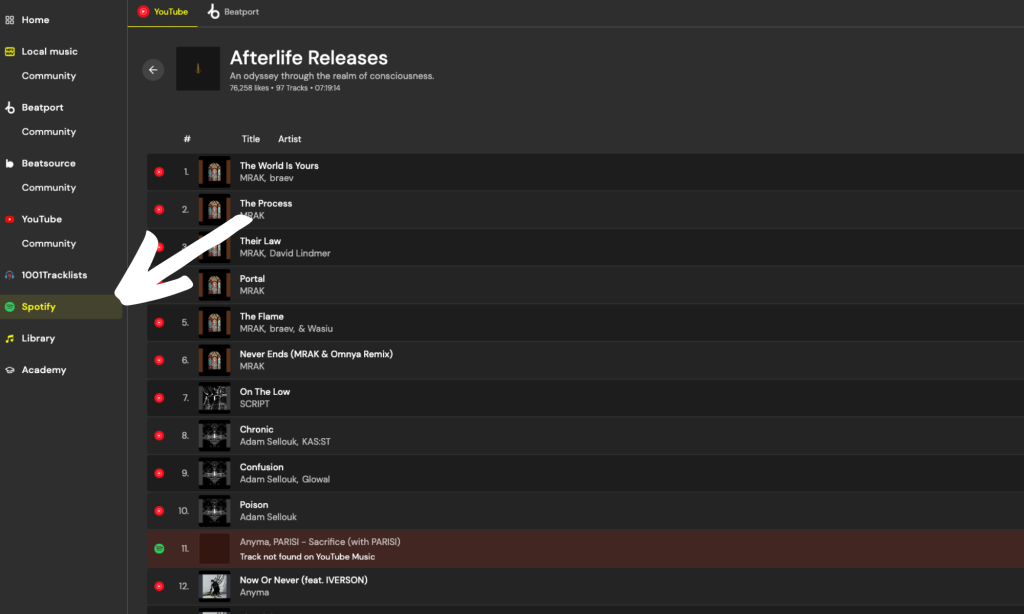
All it takes is clicking the link to the Spotify playlist in the Spotify tab on DJ.Studio’s software. The software will instantly start importing the music from the playlist into DJ.Studio and convert it to YouTube Music, one of the main platforms that DJ.studios uses to source its music.
There are some limitations when pulling music directly from streaming sources vs. using local files like MP3s and WAV files, but it certainly gets the job done.
For the more DJ-minded users, you’ll notice that the software simultaneously analyzes the music and labels it in Camelot notation (see image below). Without diving too deeply into this, Camelot notation makes it easy to mix and pair songs that musically make sense, whether in the same or neighboring keys. This simplifies creating DJ mixes that blend seamlessly.
We’ll rely on that and the BPM analysis in the next section.
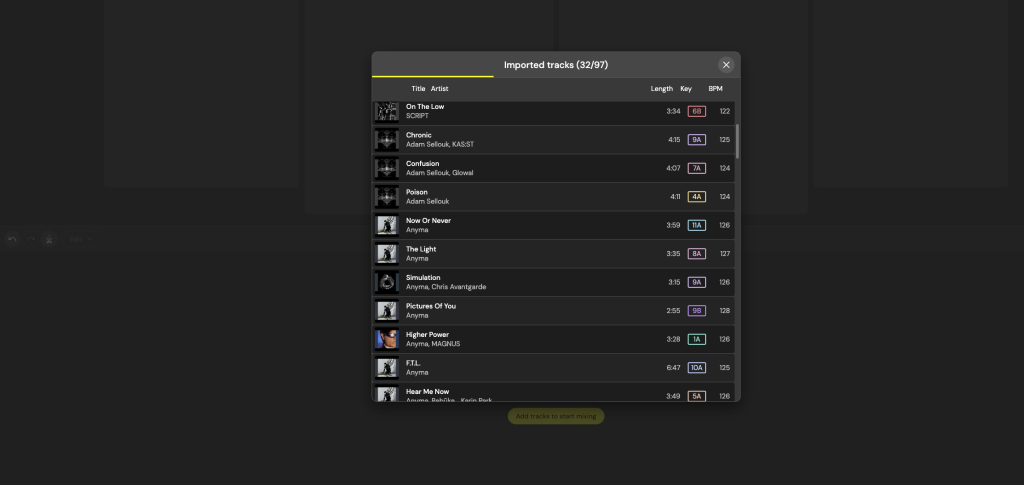
For now, just look at how quickly and easily DJ.Studio flipped this playlist into something we can instantly start using, mixing, and turning into our ultimate Power Hour playlist.
Before getting into the mix itself, we need to filter out some of the songs we may not need. Since this is a Power Hour, we only need 60 songs out of the 200+ in Afterlife’s massive discography. You’ll notice that the playlist has 97 tracks right now, as DJ.Studio works best with playlists of 100 songs or under, which is more than enough for this exercise. So, I’ll start filtering and reordering songs by length, selecting only the top 60 songs to import into this mix.
We don’t need the more extended, drawn-out 7-minute arrangements; we want tight, punchy radio edits that quickly get to the best parts.
Let’s highlight the top 60 songs and select those to add to our mix.
Step 3: Mixing The Music

Once DJ.Studio has converted the music to YouTube Music, it displays everything from the key and tempo to the energy level, providing a general overview of the song’s energy flow. This information is vital for sequencing your music, but it’s far from perfect. As you can see in the picture above, the Camelot notation keys of all the tracks don’t align, there are wild jumps in tempo, and the energy flow map at the bottom is inconsistent.
To address this, we’ll leverage DJ.Studio’s AI capabilities to auto-mix the music. This feature takes care of the heavy lifting, ensuring the mix makes sense in terms of energy flow and harmonic mixing, and it all happens with the click of a button.
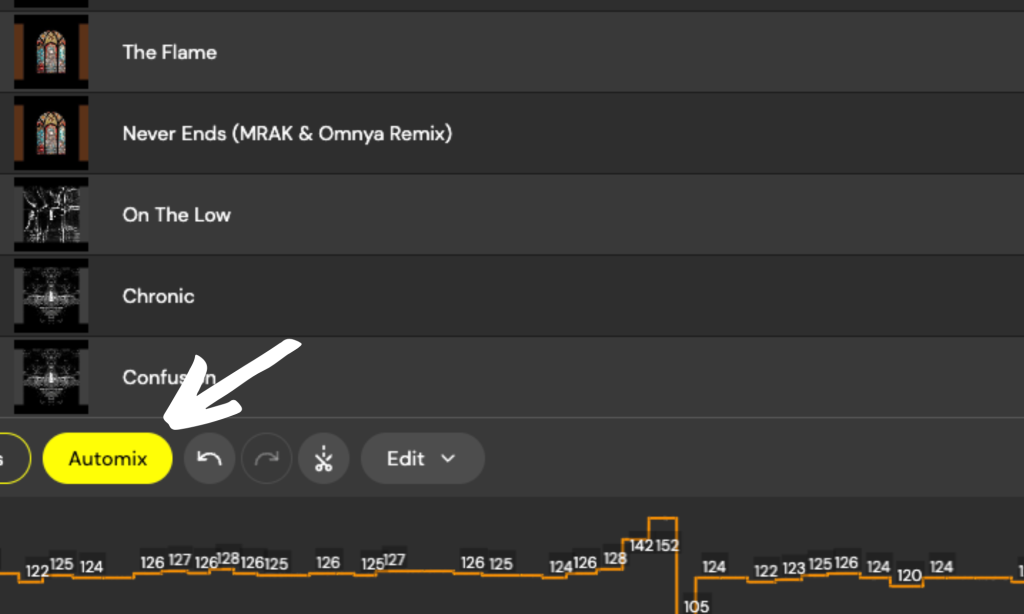
The DJ.Studio software runs through millions of options, combinations, and sequences for mixing tracks. It selects the best ones based on tempo jumps, transitions, keys, and other factors. The software uses its best judgment to sequence and mix the tracks at the most seamless and natural times.
While we’ll need to edit this to adapt it for a power hour with fast transitions, the software organizes the tracks as close to the way a real DJ would do it as software and AI can manage. That alone takes a lot of the heavy lifting off our shoulders in terms of organizing and arranging the tracks and turns, which used to take hours, into a small task that can be done in minutes.

As I prepared to move on to the final stage of editing and make minor adjustments to each song’s transition points, I realized I had missed a valuable tool that DJ.Studio offers.
Normally, when making DJ mixes, I rely on longer transitions, usually over 32 bars or more like you can check out in the promo mixes I put together using the same software at the end of this section, which is about a minute of song time. For a power hour, we need much quicker transitions.
So, I will go into DJ.Studio settings and set up a template for transitions over about four bars.
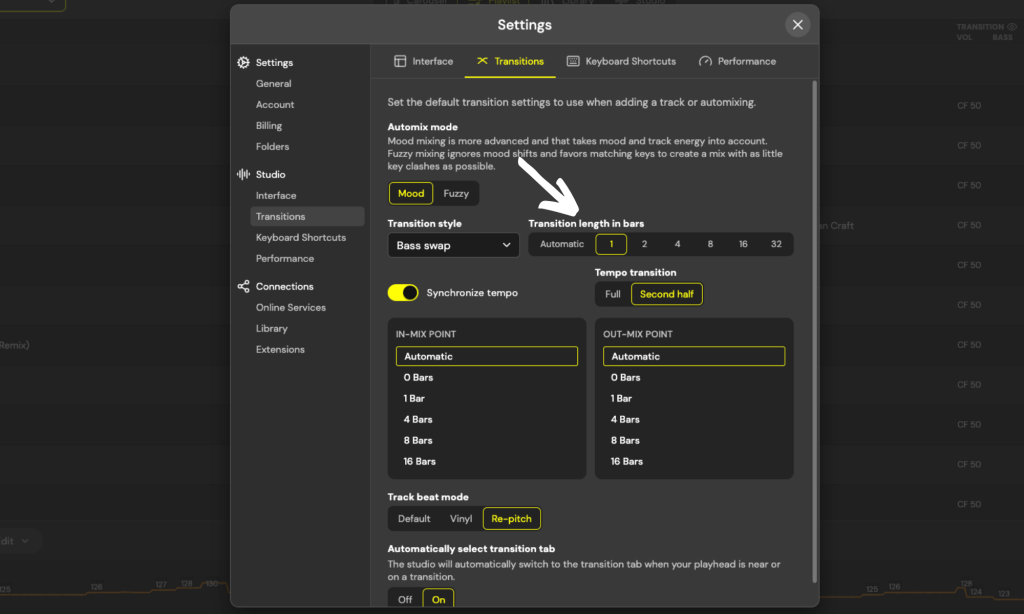
By hitting the auto-mix button again, all transitions will be much faster, catering to the rapid mixing style that power hours need and rely on.
Once this is done, all I need to do is hit the Automix feature again, and it will reorder the tracks with much faster transitions. This will save us hours of smaller edits, reducing what would have been a lengthy process to just a few minutes in the final step.
Step 4: Final Edits
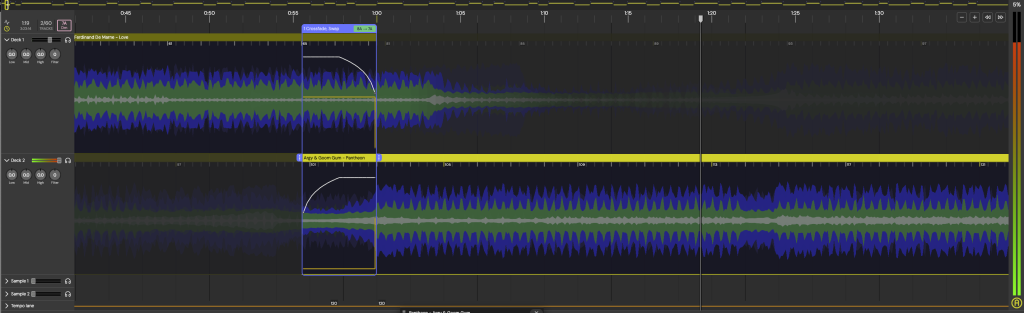
All that’s left is to move some of the transition marks and points of the songs so that each song transitions out after a minute and into one of your favorite, most impactful sections of the next song. This could be a drop, a chorus, or a specific breakdown that is the song’s best part.
Adjusting the mix in time so that the track fades into the next at the top of every minute mark means the timings and mixing are the easiest part of this process! Having “The Light” come in right at the 11-minute mark hits hard and is super easy to pull off.
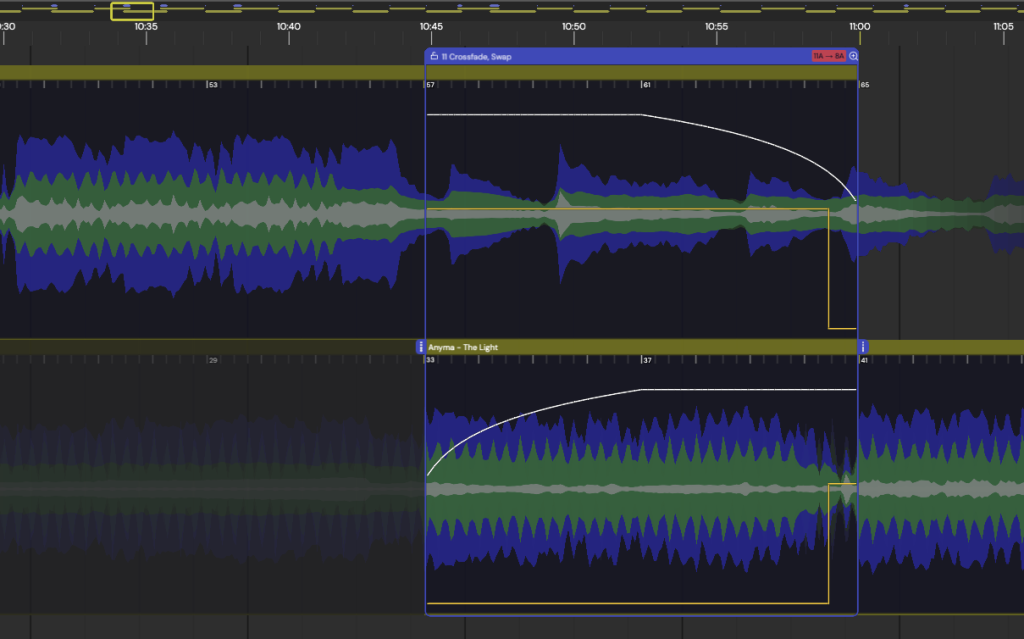
It all depends on the playlist’s vibe or the Power Hour’s theme. DJ.Studio’s AI software has already roughly mapped out the songs so they flow well tempo-wise and key-wise, avoiding massive jumps in vibe or energy.
As you can see in the image above, I’ve started transitioning out of the drop and into the main, iconic vocal section of the Afterlife record, and the groove and percussions of the incoming track help keep the energy going despite the ambient breakdown of the track that came before. It only took about three or four clicks, and I was on to the next song. Rinse and repeat this process over the whole Power Hour mix, and you’ll be ready to export it, share it with your friends, and enjoy the mix.
Step 5: All That’s Left…
After that, just hit the export button, and the audio will be converted for you. It’s that straightforward.
Since I pulled most of this music from Spotify/YouTube, the software will only allow it to host the the mix on DJ.Studio’s community isn’t that bad, really, as you can either send the link over like this to your friend or just stream the mix directly from your laptop if you’re hosting the function at your own place!
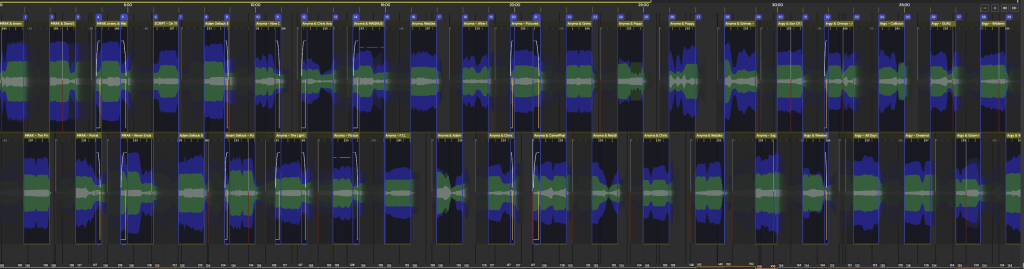
But, if you made your mix using local files like MP3s or Wavs, you are more than welcome to upload it to SoundCloud, YouTube, or wherever you want to stream your music, and you can have an on-demand Power Hour to play with your friends.
I cannot stress enough how quick and simple this process is. It’s really dope to create a vibe or theme that fits the situation and your circle of friends rather than relying on corny 80s mixes on YouTube that are interrupted every minute with unskippable ads and lame pop-ups!
Learn More About DJ.Studio Right Here ️🔥️🔥


Will Vance is a professional music producer who has been involved in the industry for the better part of a decade and has been the managing editor at Magnetic Magazine since mid-2022. In that time period, he has published thousands of articles on music production, industry think pieces and educational articles about the music industry. Over the last decade as a professional music producer, Will Vance has also ran multiple successful and highly respected record labels in the industry, including Where The Heart Is Records as well as having launched a new label with a focus on community through Magnetic Magazine. When not running these labels or producing his own music, Vance is likely writing for other top industry sites like Waves or the Hyperbits Masterclass or working on his upcoming book on mindfulness in music production. On the rare chance he's not thinking about music production, he's probably running a game of Dungeons and Dragons with his friends which he has been the dungeon master for for many years.






![How It Was Made: Lang Father i(Junkyard Dog) [Welofi]](https://magneticmag.com/wp-content/uploads/2026/10/Press-Pic_2-1024x576.jpg)